Jira Priority Levels Explained: A Practical Guide for Teams in 2026
Unsure what to tackle first? Learn Jira priority levels, how they differ from severity and backlog rank, and apply them consistently. Read now.
When every Jira issue looks urgent, your team can lose time debating what to tackle first. A vague priority scale makes real deadlines harder to spot, while inconsistent choices can leave important work buried beneath noisy requests.
But here's the truth: Jira priority levels only help when your team shares a clear understanding of each one. Jira commonly uses five levels, from Highest to Lowest, but administrators can customize the available options.
This guide explains what those levels mean, how they differ from severity and backlog rank, and how to apply them consistently. You’ll also get a practical triage approach, examples for common work, and ways to review whether your priority system is helping your team deliver.
What Jira priority levels mean
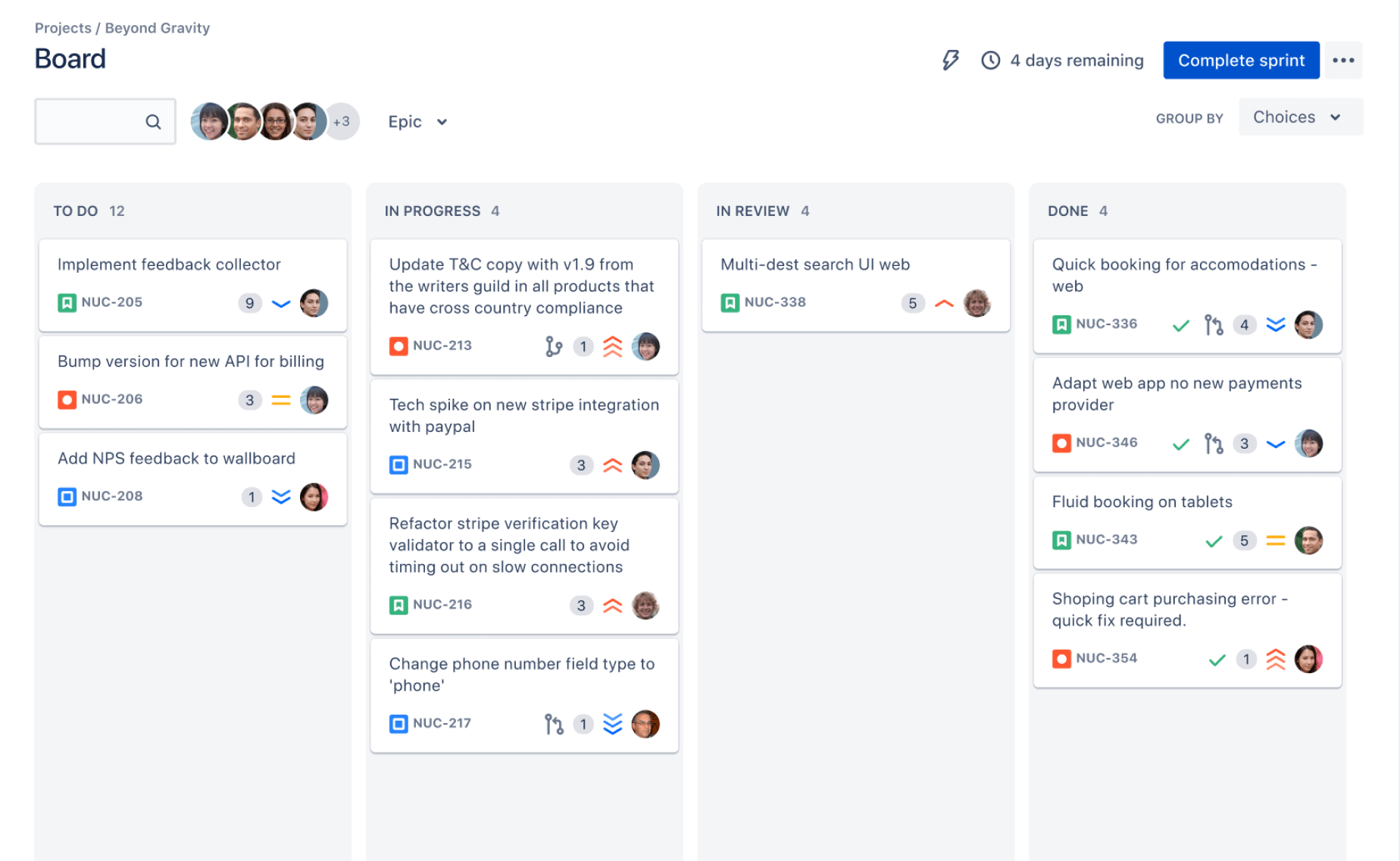
Jira priority levels indicate how urgently a team should address an issue compared with other work. They help teams decide what deserves attention first, but the available labels and their exact meanings can be customized.
A common Jira setup includes five levels. Treat these descriptions as a starting point, then agree on definitions that fit your team:
- Highest: A critical outage, security concern, or blocker requiring immediate attention.
- High: A significant issue that needs prompt action, such as a broken checkout affecting many customers.
- Medium: Important planned work or a defect with a practical workaround.
- Low: A minor issue or improvement that can wait behind more consequential work.
- Lowest: A small polish item or enhancement with little immediate impact.
These labels are not universal rules. One team might reserve Highest for production outages, while another uses it for any work blocking a release. The useful choice is the one your team applies consistently.
Here's why: a priority label should communicate an action, not just someone’s level of concern. If a person selects High, teammates should understand what response or timing that implies.
Priority, severity, and backlog rank are different
Priority, severity, and rank answer different questions. Priority indicates how soon a team should act. Severity describes the scale of harm or technical impact. Rank determines an issue’s position in a planned work queue.
For example, a severe defect affecting one internal test environment might receive Medium priority if a workaround exists. A less severe payment issue could be High priority if it blocks many customers.
Backlog rank adds another distinction. Two issues can both have High priority, but one may sit higher in the sprint backlog because it is smaller, unblocks other work, or fits the current sprint goal.
Let me explain: priority is a signal for urgency, not a complete planning decision. Teams still need to consider customer impact, effort, dependencies, commitments, and available capacity.
How to choose a priority consistently
Use a shared triage routine instead of choosing a label by instinct. A short decision process helps two teammates assess the same issue in similar ways.
- Identify who or what is affected. Note whether the issue affects one person, a team, a major customer group, or a critical service.
- Assess the impact. Check whether work is blocked, money or access is at risk, or a workaround exists.
- Consider timing. Look for a real deadline, release date, contractual commitment, or active service disruption.
- Compare against team definitions. Use your agreed examples to select a level rather than relying on the requester's preferred label.
- Record the reason and review it. Add a short explanation, then revisit the priority when circumstances change.
For example, a login bug with a workaround for a few users might be Medium. If it prevents all customers from accessing the service, it may become Highest under the team’s rules.
The best part? You can make the decision repeatable without turning triage into a lengthy meeting. A clear definition and a brief impact note often provide enough context.
Set up a priority scale your team can use
Start with the fewest levels that help people make meaningful distinctions. Five options work for many teams, but a smaller team may find three levels easier to apply consistently.
Write a short definition for each level, including a practical example and the expected response. For instance, “High: a customer-facing problem with no practical workaround; triage the same business day” is clearer than “important.”
Check that your definitions match how the team actually works. If High covers everything from minor inconveniences to active outages, the label cannot guide decisions. Review recent issues together and adjust the definitions where people disagree.
You might be wondering: should every team use the same scale? Shared labels can help people compare work across teams, but local examples may differ. Keep the core meaning consistent while describing team-specific impact.
Use priorities in triage, planning, and review
Set or confirm priority during intake, when the team has enough context to judge impact. A requester’s urgency can be useful information, but it should not automatically determine the final level.
During sprint planning, use priority alongside effort, dependencies, and sprint goals. A High-priority issue may still need investigation before it is ready, while a Medium issue might be the right next task if it unblocks several others.
Review priority changes when conditions shift. A Low issue can become urgent after a release, and a Highest issue may move down once a workaround restores service. Add a brief reason so teammates understand the change.
For example, a weekly review might reveal that many issues remain High for months. The team can check whether its definition is too broad, work is missing clear owners, or old priorities need reassessment.
ONES.com Solution: ONES.com
ONES.com brings project management and knowledge management together on one platform, powered by ONES Assistant. ONES Project is its project management product and a Jira alternative; it is sold separately from ONES Wiki.
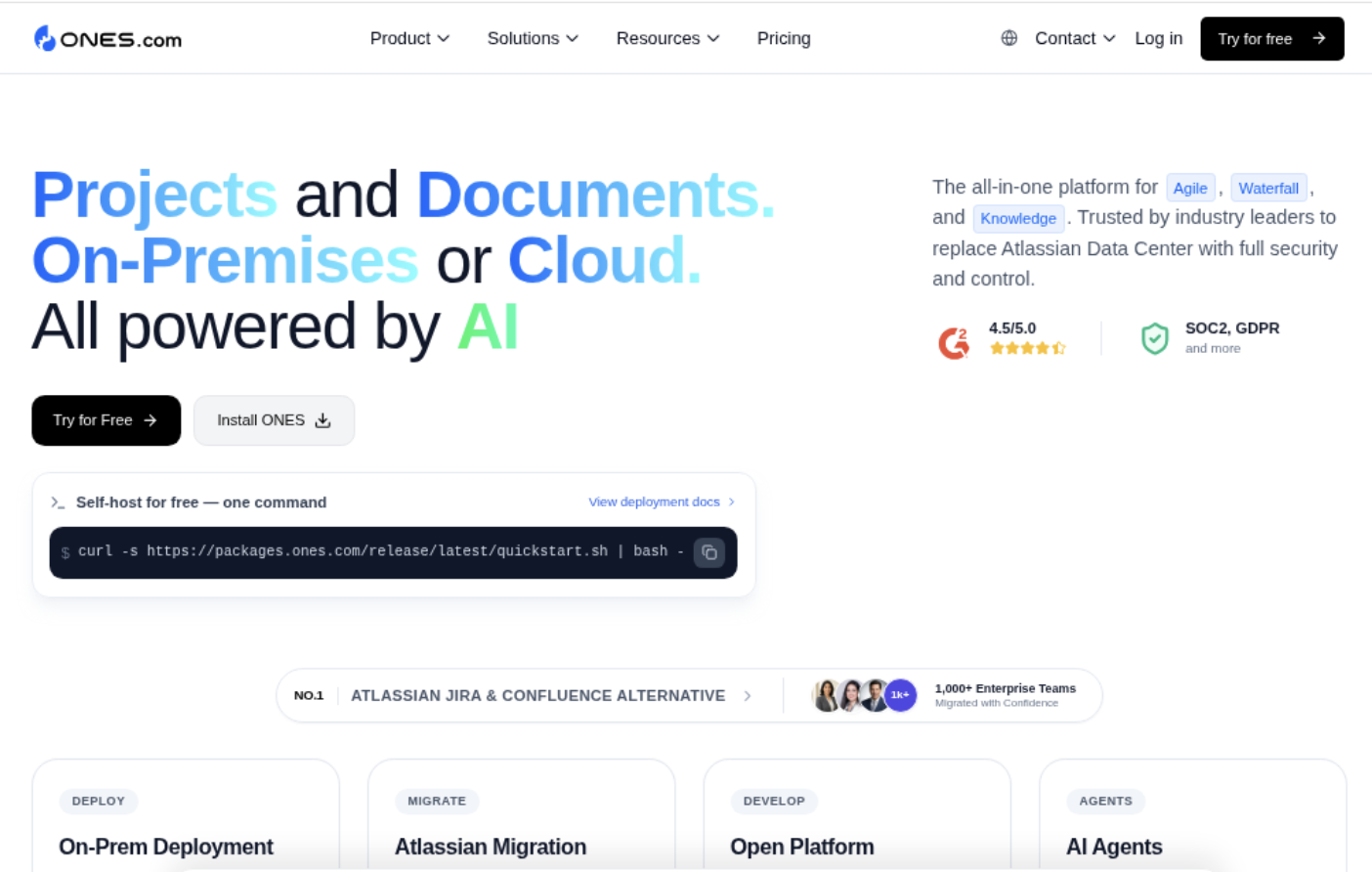
For teams reviewing priority practices, ONES Project offers Jira-compatible workflows, custom fields, sprint management, automation, and built-in reporting. Those capabilities can help make priority definitions part of everyday work instead of an informal convention.
Core capabilities
- Priority choices vary across teams: Custom workflows and fields let teams reflect their triage steps and capture impact details. The result is a priority process that fits the work.
- Jira workflows need to remain familiar: Jira-compatible workflows help teams carry over established ways of handling issues. That can reduce disruption during a change.
- Planning needs sprint context: Sprint management connects priority discussions with planned team work. Teams can consider urgency alongside sprint commitments.
- Manual handoffs slow routine work: Automation can handle repeatable workflow actions. This gives teammates more time for assessment and problem-solving.
- Priority patterns are hard to inspect: Built-in reporting helps teams review work and spot patterns. That makes it easier to identify stale or inconsistently used levels.
- Extra plugins add operational overhead: Native project management capabilities can reduce reliance on plugins for common workflows and reporting needs.
- Teams have different hosting requirements: ONES.com supports Cloud, On-Premise, Private Cloud, and Air-gapped deployments. Teams can choose an environment suited to their constraints.
- Self-hosting can raise feature concerns: ONES.com provides full feature parity between cloud and self-hosted versions. Teams can consider deployment needs without giving up feature access.
Application scenarios
Product team: A product group can use custom fields to capture customer impact and a workaround, then apply its shared priority definitions during triage. Sprint planning can consider those labels alongside effort and dependencies.
Restricted-network team: A team working in an air-gapped environment can use an appropriate ONES.com deployment while managing project workflows. The team can organize work without relying on a cloud-only setup.
Common challenges with priority levels
Everything becomes High
Problem: Requesters may choose High to get attention, leaving the team unable to distinguish urgent issues from routine work.
Solution: Ask for impact, affected parties, and deadline details during intake. Apply team definitions consistently, and review examples together when people disagree.
Priority labels mean different things to different people
Problem: One person may interpret Medium as “work this sprint,” while another sees it as “fit this in later.” Planning then becomes unpredictable.
Solution: Write a plain-language definition and a concrete example for each level. Explain expected response timing only where the team can support that commitment.
Old priorities no longer match current conditions
Problem: Issues can stay at Highest after a workaround is found, or remain Low after their impact grows.
Solution: Reassess priority during regular triage and when a major condition changes. Record the reason for significant adjustments.
Priority is mistaken for implementation order
Problem: Teams may assume the highest-priority issue must always be the next task, even when it is blocked or unsuitable for the current sprint.
Solution: Use priority as one planning signal. Consider readiness, dependencies, effort, and sprint goals before committing to work.
FAQs about Jira priority levels
What are the default Jira priority levels?
A common Jira configuration includes Highest, High, Medium, Low, and Lowest. Your Jira administrator may change the available labels or their order, so check your team’s current configuration. The names alone do not define response times. Agree on what each level means for impact, urgency, and expected action before relying on the scale.
Can I customize priority levels in Jira?
Jira administrators can configure priority options, and the available setup may depend on the Jira environment and its configuration. Before changing labels, review how teams currently use them and whether any workflows or reports rely on existing options. A small, well-defined scale is generally easier to apply than many overlapping labels.
Is priority the same as severity in Jira?
No. Priority helps a team decide how urgently to address an issue, while severity describes the extent of its impact. A serious defect can have lower immediate priority if a workaround is available. A less severe issue may deserve urgent attention when it affects a large customer group or blocks a critical business process.
Should every Jira issue have a priority?
A priority can help teams triage and plan issues, but not every team needs to assign one immediately at creation. If a new issue lacks impact details, leave it for triage or follow your team’s intake practice. The important part is that issues needing decisions receive a level before the team commits to handling them.
Conclusion
Jira priority levels help your team communicate urgency when each label has a shared meaning. Start with a manageable scale, define it with concrete examples, and assess impact before assigning a level.
Then revisit priorities as deadlines, workarounds, and customer impact change. This prevents everything from becoming urgent and helps your team make planning decisions with better context. If your current workflow makes that difficult, review how your project management setup supports triage, reporting, and consistent team practices.