Jira Project Management Features: A Guide for Agile Teams
Struggling to keep sprints on track? See how Jira project management features improve planning, issue tracking, workflows, and reporting. Read now.
Agile teams can lose momentum when work is scattered across boards, unclear handoffs, and status updates that arrive too late. Even a sprint with clear goals can drift if nobody knows which issue is blocked or what is ready to review.
That creates more than a tracking problem. Missed dependencies, crowded backlogs, and unreliable reports make it harder to plan the next sprint with confidence.
Jira brings planning, issue tracking, workflows, and reporting into one place. Here’s how its project management features fit together, where they help most, and what to consider when setting them up for your team.
Jira Project Management Features at a Glance
Jira is a project management platform that helps Agile teams plan work, track issues through workflows, manage sprints, and review progress. Its features connect a team’s backlog and day-to-day tasks with shared boards and reports.
For example, a software team can capture a bug as an issue, prioritize it in the backlog, assign it to a sprint, and move it across a board as work progresses. The team can then use sprint reports to review completed work and identify unfinished tasks.
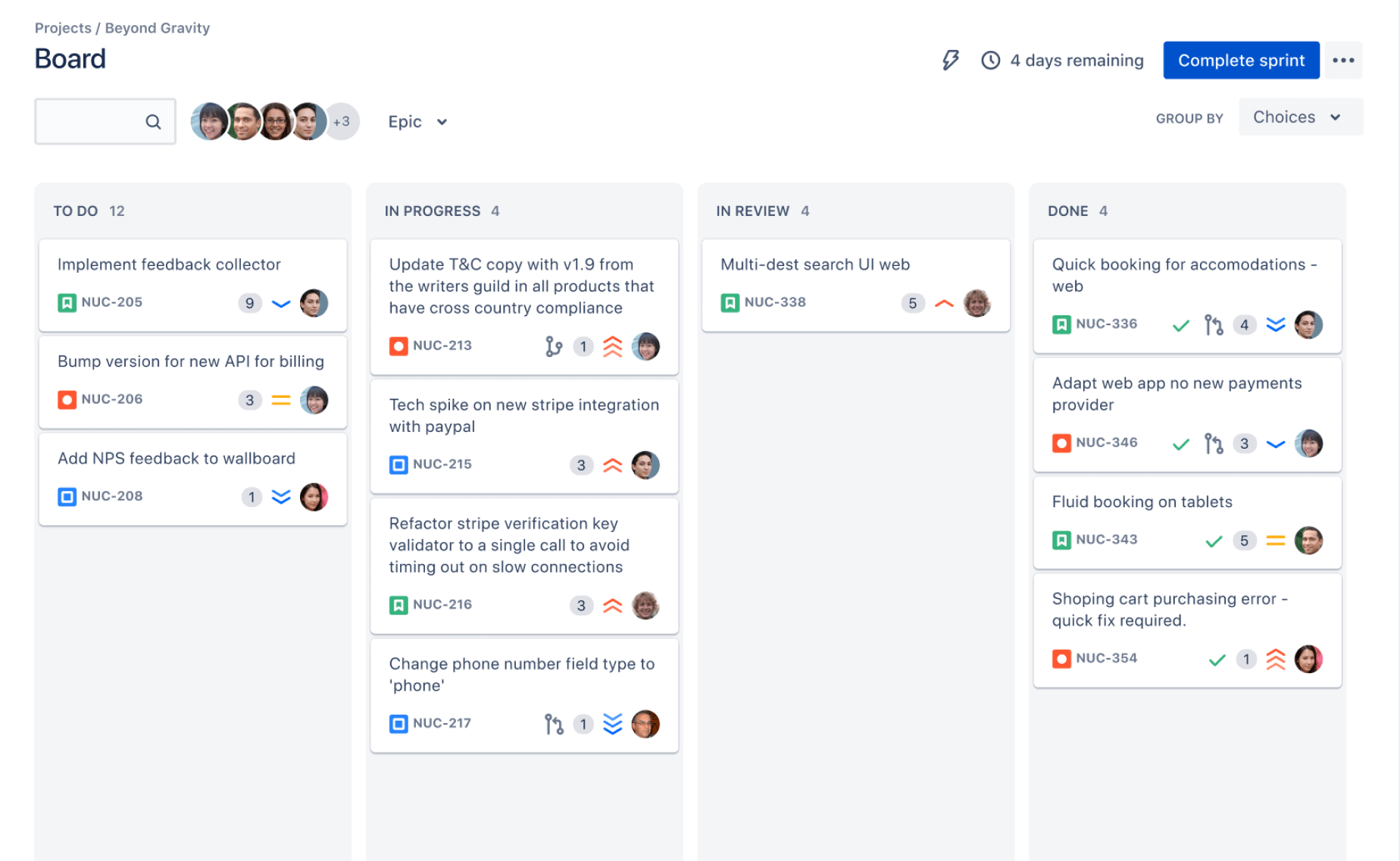
Core features Agile teams use
- Issues: Track tasks, bugs, stories, and other work items with fields, owners, priorities, and statuses.
- Boards: Visualize work as cards arranged across columns, such as To Do, In Progress, and Done.
- Backlogs and sprints: Prioritize future work and plan a time-boxed batch of tasks for a Scrum team.
- Workflows: Define the statuses and transitions an issue follows as it moves through the team.
- Reports and dashboards: Review project activity and progress through charts, summaries, and configurable views.
- Automation: Set rules for routine actions, such as notifying a team when a task reaches a particular status.
- Custom fields and permissions: Capture team-specific details and control who can view or change work.
But here's the truth: having these features available does not automatically create a clear process. The team still needs to decide how work should flow and which information matters.
How Jira Supports an Agile Project Workflow
A useful way to understand Jira is to follow a task from idea to delivery. Each feature contributes a different part of that journey, from prioritization to review.
- Capture the work. Create an issue for a user story, bug, or task. Add a summary, description, owner, priority, and any fields the team needs.
- Prioritize the backlog. Arrange upcoming issues so the team can see what matters most. A product team might place a login defect above a lower-priority interface refinement.
- Plan the work. In Scrum, select issues for a sprint and agree on a realistic goal. A Kanban team can instead pull work into progress as capacity allows.
- Track progress on a board. Move issues through the team’s workflow. Columns make it easier to spot work that is waiting for review or blocked by another task.
- Review results. Use reports and team discussions to understand completed work, unfinished tasks, and possible improvements for the next cycle.
Here's why: a shared workflow gives every teammate a common view of progress. If code review is a required step, a dedicated status can show which issues are waiting for approval.
Scrum and Kanban in practice
Scrum teams typically organize work around a backlog, sprint planning, and a defined sprint period. Their board helps track each sprint’s selected issues as work moves toward completion.
Kanban teams focus on continuous flow rather than fixed sprint commitments. A team handling customer support requests, for example, can use board columns and work-in-progress limits to keep requests moving.
The best fit depends on how your team plans and delivers work. Choose a board setup that reflects your actual process rather than copying another team’s configuration.
Planning and Tracking Work Without Losing Context
Jira issues can hold the details a team needs to act, while boards make that work easier to scan. The combination helps teammates move between an individual task and the broader project view.
Imagine a team preparing a new checkout flow. It could create separate issues for payment validation, the confirmation page, and accessibility testing. Linking related work can help teammates see dependencies and discuss which task should happen first.
Make issues easy to understand
Give each issue a clear summary and enough detail to support the next action. “Fix checkout” leaves too much open to interpretation; “Show an error when a card is declined” describes a more specific outcome.
Use fields selectively. A team that requires a component, priority, and acceptance criteria for every issue may get better handoffs. Requiring many fields that nobody uses can slow work without improving decisions.
Use boards to reveal bottlenecks
Board columns can represent meaningful steps, such as Ready, In Progress, Code Review, and Done. If many issues collect in Code Review, the team has a visible signal to investigate the handoff.
Keep the board aligned with the team’s real process. A column that nobody updates soon becomes an unreliable signal, even if the board looks polished.
The best part? A small, consistent workflow often gives you more useful visibility than a complicated board with many rarely used statuses.
Workflows, Automation, and Reporting
Workflows define how issues move from one status to another. A simple process might move a task from To Do to In Progress, then to Review, and finally to Done.
Jira allows teams to configure workflows, fields, and automation to suit their needs. That flexibility can reduce repetitive administration, but every rule should have a clear purpose.
Automate repetitive actions carefully
For example, a rule could notify a reviewer when an issue enters the Review status. Another rule might assign a task to a designated person when it is added to a specific component.
Start with one repeated action that causes delays. Test the rule with a small set of work, then check whether it saves time without creating unexpected changes or excess notifications.
Use reports to support decisions
Jira reports and dashboards can help teams inspect work patterns and project status. A sprint report may help a Scrum team review completed and unfinished issues after a sprint.
Reports are most useful when paired with discussion. If a team sees unfinished tasks appearing in several sprints, it can investigate estimation, interruptions, or dependencies instead of treating the chart as an answer by itself.
Let me explain: a report shows a pattern, while the team’s context helps explain what that pattern means. Use both before changing a plan or process.
Set Up Jira for Clearer Team Collaboration
A project setup works best when teammates agree on what statuses mean and what details an issue needs. Without that agreement, one person’s “Done” may mean ready for testing while another’s means released.
For example, a product team can agree that an issue is ready for development only after its expected outcome and acceptance criteria are clear. That small agreement can reduce clarification messages during the sprint.
Agree on working conventions
Decide who can create, prioritize, assign, and close issues. Clarify how your team marks blocked work, handles urgent requests, and communicates changes to a sprint goal.
Write down only the conventions teammates need to follow. A short set of practical rules is easier to maintain than a long process guide that nobody checks.
Keep project views focused
Use dashboards and board filters to answer specific questions. A team lead might want a view of blocked tasks, while a developer may need a board showing work assigned to the current sprint.
You might be wondering: should every team use the same workflow? A shared workflow can help when teams collaborate closely, but teams with different delivery needs may require separate configurations.
ONES.com Solution for Project and Knowledge Management
Value Proposition
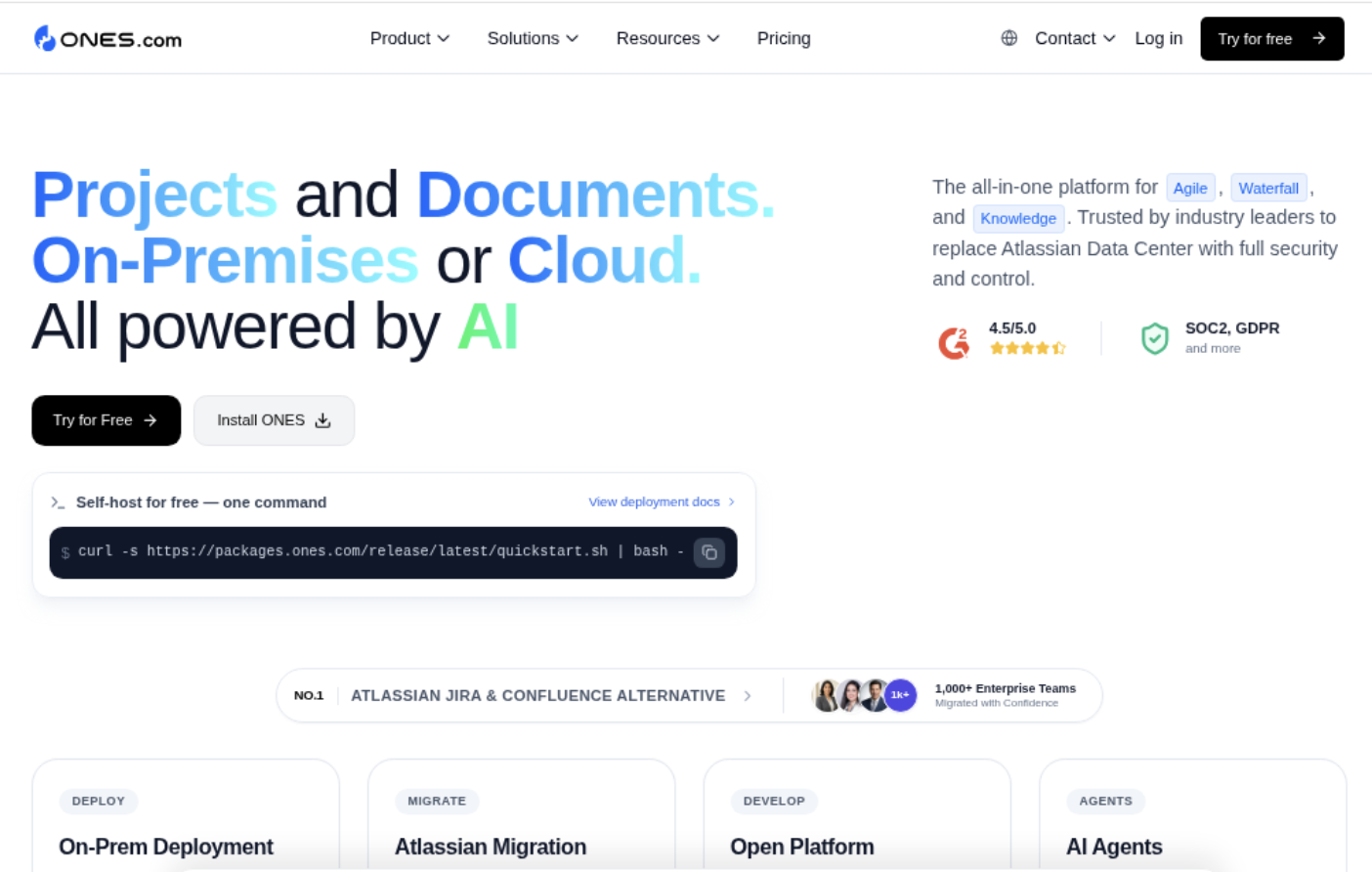
ONES.com is a unified platform for project management and knowledge management, powered by ONES Assistant. ONES Project is its project management product and a Jira alternative; ONES Wiki is its knowledge management product and a Confluence alternative. They are sold separately.
For teams that want flexible project workflows and an option for self-hosted deployment, ONES Project offers familiar project management capabilities. Its cloud and self-hosted versions have full feature parity.
Core Capabilities
- Different project processes → Jira-compatible workflows → Configure workflows that fit how your team tracks and completes work.
- Limited visibility into progress → built-in reporting → Review project activity and progress without relying only on manual status updates.
- Team-specific tracking needs → custom workflows and fields → Capture the statuses and details that matter to your project.
- Sprint planning needs → sprint management → Organize iterative work around planned sprint cycles.
- Repeated administrative steps → automation → Reduce routine actions with workflow automation.
- Too many separate project and knowledge spaces → ONES.com platform → Bring project management and knowledge management under one platform, while choosing ONES Project and ONES Wiki separately.
- Deployment restrictions → four deployment options → Choose Cloud, On-Premise, Private Cloud, or Air-gapped deployment based on operational requirements.
- Need to test with a small team → free plan for 30 seats → Explore the platform with a team of up to 30 seats.
ONES Project is designed for teams looking for a Jira alternative with native workflow, reporting, sprint, and automation capabilities. Those capabilities may help reduce reliance on plugins for teams whose requirements fit the built-in options.
Application Scenarios
Software team with restricted hosting requirements: A team that cannot use a public cloud deployment can evaluate On-Premise, Private Cloud, or Air-gapped options. It can select the environment that aligns with its operational constraints.
Agile team seeking a Jira alternative: A team can configure workflows, custom fields, sprint management, and automation for its project process. It can use built-in reporting to review progress and assess whether the setup meets its needs.
Organization managing projects and internal knowledge: A company can use ONES Project for project work and ONES Wiki for knowledge management. Since the products are sold separately, the organization can evaluate each product for its specific needs.
Common Challenges With Jira Project Management
Too many statuses make work hard to read
Problem: A board with many narrow stages can make it difficult to see the real state of work. Teammates may also interpret similar statuses differently.
Solution: Review the workflow with the people who use it. Combine statuses that do not represent a meaningful handoff, and clarify when an issue should move forward.
Backlogs become difficult to prioritize
Problem: When old requests and new ideas remain mixed together, the team may struggle to find its next priority.
Solution: Set a regular backlog review. Remove or close work that no longer matters, then clarify the order of the remaining issues before planning.
Automation creates noise or surprises
Problem: A rule that sends too many alerts or changes issues unexpectedly can reduce trust in the project setup.
Solution: Keep rules focused, explain their purpose, and test changes with a limited group. Review the results before applying an automation rule more broadly.
Reports are treated as the whole story
Problem: A chart can show a change in delivery patterns without explaining the cause. Teams may react to the number instead of exploring what changed.
Solution: Use reports as prompts for conversation. Compare the pattern with team context, such as interruptions, changing scope, or work waiting on another group.
FAQs About Jira Project Management Features
What are the main Jira features for Agile teams?
Agile teams commonly use issues, backlogs, boards, sprints, workflows, reports, dashboards, automation, and custom fields. These features support planning and tracking work through a team’s process. The exact setup depends on whether the team uses Scrum, Kanban, or another approach. Teams should start with the capabilities they need for daily work, then add complexity only when it solves a clear problem.
Can Jira support both Scrum and Kanban?
Yes. Jira supports Scrum-style planning with backlogs and sprints, as well as Kanban-style work tracking through boards and continuous flow. A Scrum team might plan a two-week sprint, while a support team might pull requests into progress as capacity opens. Choose a setup that matches how work arrives and gets delivered rather than selecting a board type simply because another team uses it.
How do Jira workflows help manage projects?
A workflow defines the statuses and transitions an issue follows. It can make handoffs visible, clarify which tasks are waiting for action, and help teammates share a consistent understanding of progress. For example, a team could use a Review status to show that development is complete but approval remains. Keep the workflow understandable, and avoid adding stages that do not change what the team does.
Does a team need automation in Jira?
No team needs to automate every step. Automation is useful when a repeated action consumes time or causes avoidable delays, such as notifying a reviewer when an issue reaches a review stage. Start with a clear use case and test the rule before relying on it. If a rule creates confusing updates or unnecessary alerts, adjust or remove it.
What should a team consider when comparing Jira alternatives?
Compare the workflow options, sprint planning, reporting, customization, automation, deployment choices, and expected team setup. Also consider how much the team depends on plugins and whether it needs cloud or self-hosted deployment. A practical evaluation includes a representative project workflow, not just a feature checklist. For example, test how an issue moves from planning through review and completion.
Conclusion
Jira project management features help Agile teams organize issues, plan work, visualize progress, and review delivery. Boards, backlogs, workflows, reports, and automation are most useful when they support a process teammates understand.
Start with a clear workflow and a focused backlog, then use reports to spot patterns and guide team conversations. If work feels scattered or hard to track, simplifying the process can restore visibility and reduce friction.
For teams assessing a Jira alternative, ONES Project offers project management capabilities with cloud and self-hosted deployment options. Choose the setup that fits your team’s workflow, collaboration needs, and operating environment.