Jira Project Management Software Features: A 2026 Guide
Struggling to keep Jira projects on track? Explore jira project management software features for clearer planning, workflows, and progress—read now.
A Jira project can become hard to manage when tasks, priorities, and deadlines live in different places. Even with a capable platform, teams may struggle to see what is moving, what is blocked, and who owns the next step.
That confusion can lead to missed handoffs, crowded backlogs, and reports that raise questions instead of answering them. Jira offers features for planning work, tracking progress, managing workflows, and sharing updates, but knowing what each feature does makes a real difference.
Here’s a practical guide to Jira project management software features in 2026. You’ll learn how its main capabilities fit together, what to configure first, and how to choose a setup that matches your team’s work.
Jira Project Management Features: The Essentials
Jira project management features help teams organize work as issues, move those issues through workflows, plan tasks on boards, and monitor progress with reports and dashboards. Teams can adapt fields, permissions, and workflows to suit different projects.
Here’s why: Jira brings day-to-day task management and team-level planning into a shared workspace. A development team might track bugs and sprint work, while a marketing team uses tasks, due dates, and approval steps.
The main feature groups are project and issue management, boards and backlogs, workflows, reporting, automation, and integrations. Which features matter most depends on your team’s process and the level of detail you need to track.
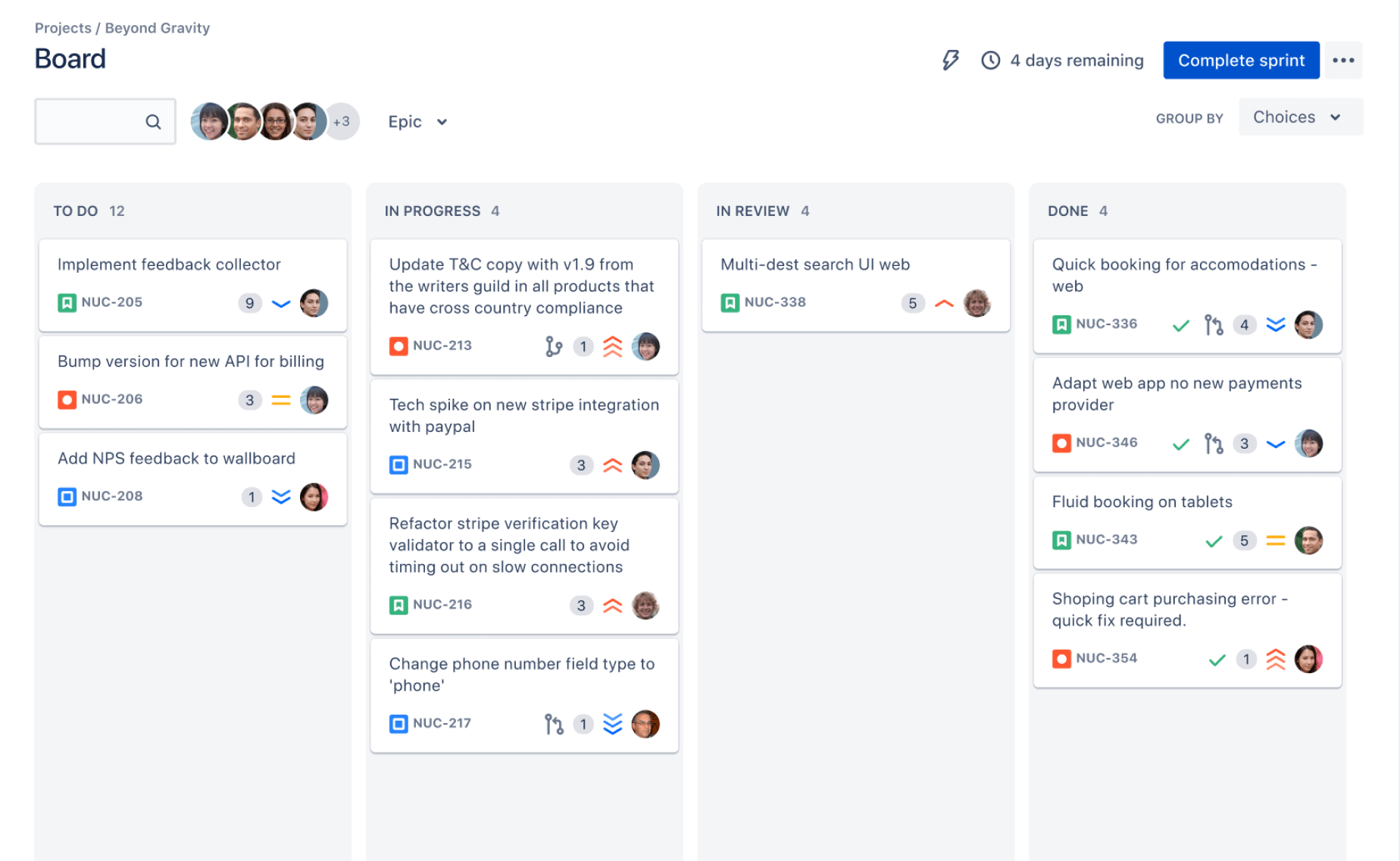
Projects, issues, and fields
A Jira project groups related work. Within it, issues represent individual pieces of work, such as a task, bug, story, or larger initiative. Fields capture details like priority, assignee, status, and due date.
You can use issue types and custom fields to reflect how your team works. For example, a support team may track customer impact, while a product team may record a feature’s target release.
Boards and backlogs
Boards show work as cards arranged by status or another chosen view. A Kanban board helps teams manage a steady flow of tasks, while a Scrum board supports sprint planning and review.
A backlog gives teams a place to organize and prioritize upcoming work. A team can move selected issues into a sprint, estimate effort, and check the board as work progresses.
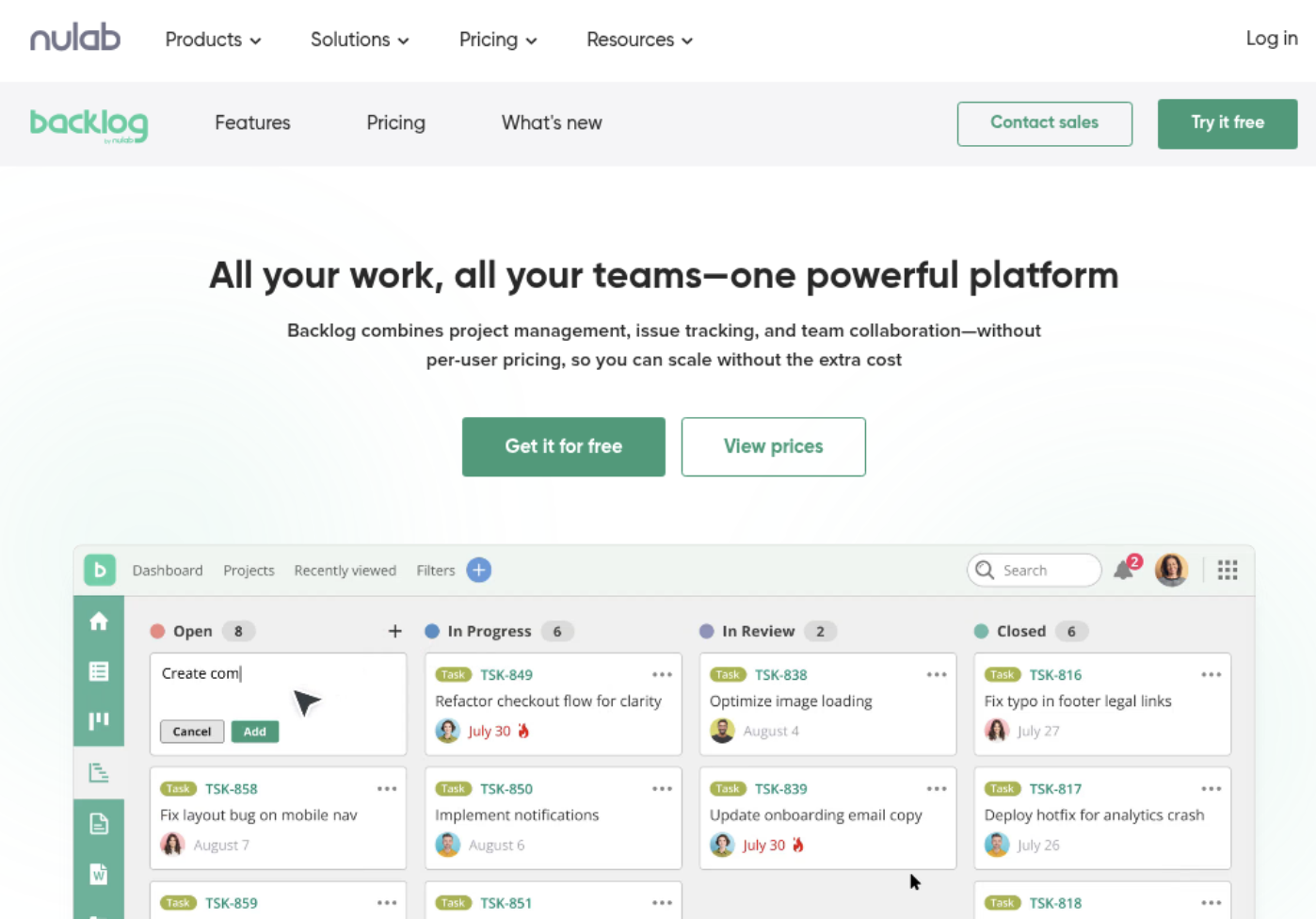
Workflows, reports, and automation
A workflow defines the statuses and transitions an issue can follow. A simple task may move from “To do” to “In progress” and then “Done,” while an approval-heavy process can include review stages.
Reports and dashboards make progress easier to inspect. Automation can handle repeatable actions, such as assigning an issue when it enters a specific status or notifying a team when a deadline approaches.
Plan Work with Projects, Backlogs, and Boards
Good planning starts with a clear structure. Decide what belongs in a project, how the team will break work into issues, and which board view makes the next action easy to see.
For example, a software team could group work by product area, create stories for customer-facing improvements, and add bugs for defects. The backlog then helps the product owner arrange those issues by value and urgency.
Choose a project structure that fits the work
Keep project boundaries meaningful. If several teams share the same process and visibility needs, they may work within a shared project. If they need separate permissions or workflows, separate projects may be more practical.
Too many small projects can make cross-team reporting harder. One oversized project can become difficult to navigate. Start with the work’s ownership, process, and access requirements, then adjust as those needs become clearer.
Make the backlog useful before sprint planning
A backlog works best when the top items are clear enough to discuss and estimate. Add concise descriptions, acceptance criteria where useful, and an owner when someone has already taken responsibility.
Imagine a team preparing a two-week sprint. If the top backlog items lack details, planning turns into a clarification meeting. A short refinement session beforehand can help the team choose realistic work.
Use the board to show the next action
Board columns should reflect meaningful stages, not every small activity. A team might use “To do,” “In progress,” “In review,” and “Done” when those statuses represent genuine handoffs.
But here’s the truth: a board is only useful when people keep it current. Agree on who updates status and when, such as moving an issue during a daily check-in or immediately after a review.
Shape Workflows and Customize Jira
Workflows determine how issues move from start to completion. Jira lets teams tailor statuses and transitions, so the workflow can reflect approval steps, quality checks, or other requirements.
Let me explain: a workflow is like a route through a process. If a request must be reviewed before work begins, a review status can make that handoff visible instead of leaving it in a comment thread.
Start with the smallest workable process
Begin with the statuses the team genuinely needs. A small team may only need “To do,” “In progress,” and “Done.” Add a status when it helps clarify responsibility, control a handoff, or identify a meaningful delay.
For example, a design team may add “Ready for review” because work frequently waits for feedback. That status helps the team spot a queue and discuss it before the delay affects delivery.
Use fields to capture information people act on
Custom fields can hold details that matter to a team’s decisions. A release team may need a target version, while a service team may record the business impact of an incident.
Before adding a field, ask who will maintain it and how it will be used. A field nobody updates creates clutter, while a well-chosen field can improve triage and reporting.
Set permissions and ownership deliberately
Permissions help control who can view, create, or change work. Define access around real responsibilities, especially when projects involve confidential planning or outside collaborators.
Clear ownership also reduces stalled issues. Assigning a person to investigate a defect, for instance, gives the team a direct contact for the next update without implying that one person must complete every part of the work.
Track Progress with Reports and Dashboards
Jira reports and dashboards help teams check progress, workload, and delivery patterns. Use them to answer a specific question, such as whether sprint work is on track or how long issues wait for review.
The best part? A useful report can reveal a process problem before a deadline is missed. If many tasks remain in review, the team can investigate review capacity rather than asking every person for a status update.
Match the report to the decision
Scrum teams can use sprint reports and burndown charts to review planned work and remaining effort. Kanban teams may look at flow metrics to understand how work moves through the board.
A project lead preparing a weekly update may use a dashboard for open issues, overdue work, and recent completions. That view is more actionable than a crowded page of charts with no clear purpose.
Read trends with context
A report shows patterns, but the team still needs to interpret them. A rise in open issues could mean incoming demand increased, work is being split into smaller tasks, or delivery is slowing.
Compare the report with what the team knows about the work. A single sprint with fewer completed issues may reflect unexpected support work rather than a long-term capacity problem.
Keep dashboards focused
Choose a small set of views for each audience. A delivery team may need blockers and sprint status, while an executive may prefer milestones and risks.
Too many gadgets make it difficult to find the important signal. Review dashboards periodically and remove views that no longer support a decision.
Use Automation and Integrations Carefully
Jira automation can handle recurring actions through rules, triggers, and conditions. Integrations can connect Jira with communication, development, and planning services, helping teams keep related work connected.
You might be wondering: should every repetitive action become a rule? Start with work that happens often, follows a clear condition, and is easy to verify after automation runs.
Automate predictable handoffs
A rule might assign an issue to a designated reviewer when it enters “Ready for review.” Another could send a notification when a high-priority issue remains unresolved for a chosen period.
Keep rules understandable and test them with a few issues first. If a rule assigns the wrong person or creates repeated notifications, the team needs a simple way to diagnose and correct it.
Connect the services your team already uses
Integrations can link Jira work with code changes, chat updates, or service requests. For example, a developer may connect a branch or pull request to an issue, making related progress easier to follow.
Before adding an integration, check what information it shares and who can access it. A useful connection reduces repeated updates; an unnecessary one adds alerts and complexity.
Review automation as the process changes
Rules that once made sense can become outdated after a workflow changes. Review them when the team changes roles, statuses, or notification expectations.
Keep a short note about what each important rule does and who maintains it. That small habit makes troubleshooting easier when an automated action surprises the team.
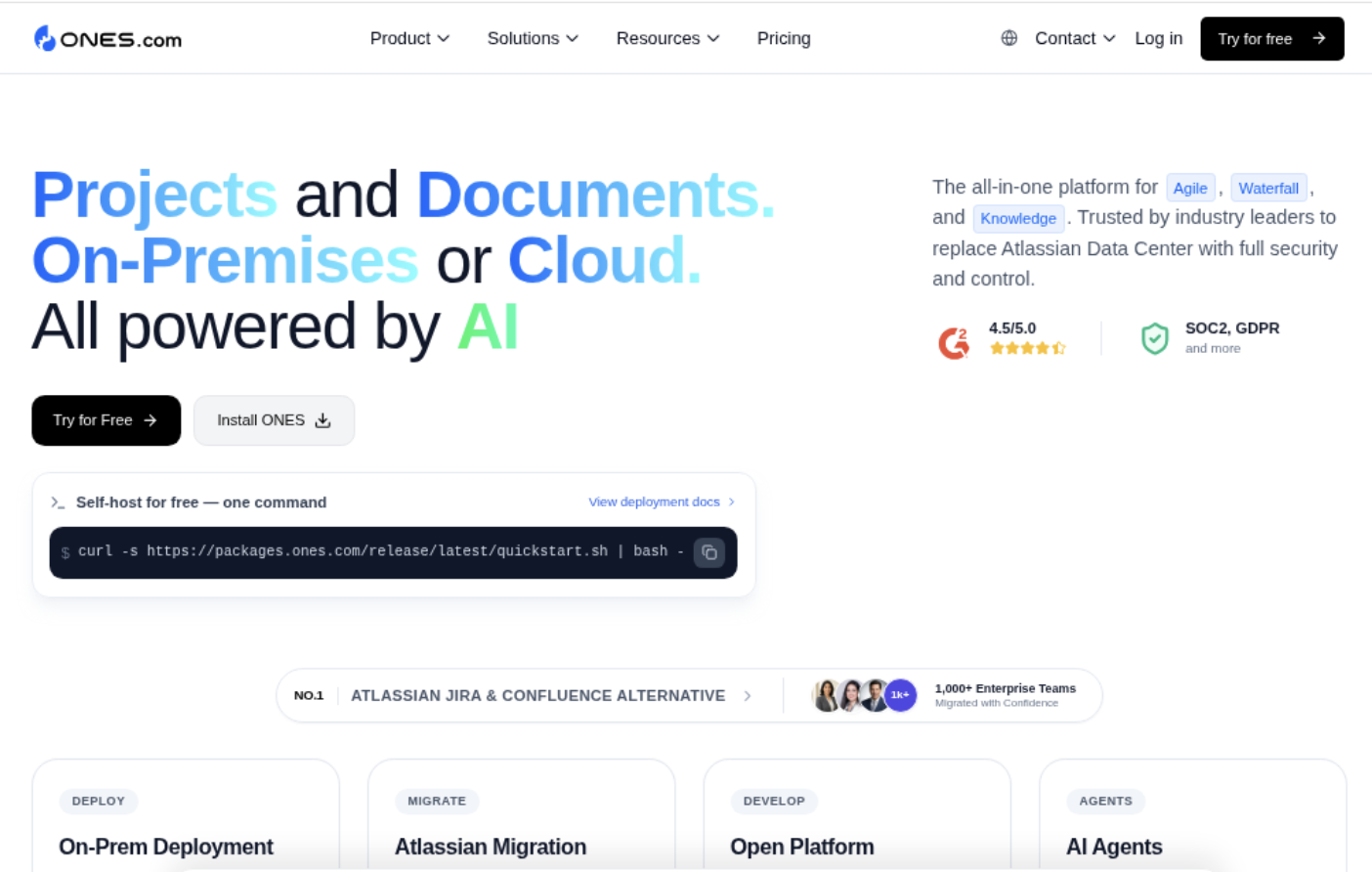
Value Proposition
ONES.com combines project management and knowledge management in one platform, with ONES Project for project management and ONES Wiki for knowledge management. The products are sold separately, and ONES Project can be considered as a Jira alternative for teams seeking flexible workflows and deployment choices.
Core Capabilities
- Pain: Teams manage project work and team knowledge in separate systems. ONES capability: ONES.com brings project and knowledge management into a unified platform. Result: Teams can connect delivery work with the information they use to plan it.
- Pain: A team needs Jira-compatible workflows while assessing a different platform. ONES capability: ONES Project supports Jira-compatible workflows. Result: Teams can map familiar processes while evaluating a transition.
- Pain: A team’s work does not fit a standard workflow. ONES capability: Custom workflows and fields let teams shape issue management around their process. Result: Relevant steps and details can be represented without relying on a default setup.
- Pain: A Scrum team needs to plan and review iterative work. ONES capability: Sprint management supports sprint-based planning. Result: Teams can organize planned work and follow it through a sprint.
- Pain: Project leads need a view of progress. ONES capability: Built-in reporting helps teams monitor project activity. Result: They can review progress without assembling every update manually.
- Pain: Repeated project actions take time. ONES capability: Automation supports recurring workflow actions. Result: Teams can reduce routine handoffs while keeping process rules visible.
- Pain: A team wants fewer add-ons for core project needs. ONES capability: ONES Project includes capabilities such as reporting, workflow customization, and sprint management. Result: Teams can assess whether fewer plugins meet their requirements.
- Pain: An organization has strict hosting requirements. ONES capability: ONES.com offers Cloud, On-Premise, Private Cloud, and Air-gapped deployments. Result: Teams can select a deployment approach aligned with their environment.
- Pain: A team requires comparable capabilities in hosted and self-hosted environments. ONES capability: The platform provides feature parity between cloud and self-hosted versions. Result: Deployment choice does not require giving up feature availability.
Application Scenarios
Software delivery: A development team can use ONES Project to organize issues, plan sprints, customize workflows, and review built-in reports. Jira-compatible workflows can help a team assess how familiar practices translate.
Restricted environments: An organization with network or hosting requirements can evaluate On-Premise, Private Cloud, or Air-gapped deployment options. This gives its technical team deployment choices to review against operational needs.
Project work connected to team knowledge: A team that wants project management alongside knowledge management can use ONES Project and ONES Wiki within the ONES.com platform. Since they are sold separately, the team can assess each product for its own needs.
Common Jira Setup Challenges
Workflows become too complicated
Problem: Every request receives extra statuses, transitions, and approval steps. People then spend time moving issues through the process instead of completing the work.
Solution: Review the workflow with the people who use it. Remove stages that do not represent a meaningful decision or handoff, then add complexity only when the process needs it.
Issues lack useful details
Problem: Teammates cannot estimate or act on an issue because its description, priority, or acceptance expectations are unclear.
Solution: Agree on a lightweight issue template for common work. For example, a bug report can include steps to reproduce, expected behavior, and observed behavior.
Boards stop reflecting current work
Problem: Issues remain in old statuses, so the board no longer shows where work stands. Teammates may rely on private messages to find out what is happening.
Solution: Set a simple update habit, such as changing an issue’s status during a daily check-in or after a handoff. Make one person responsible for checking board health, not for updating every task.
Reports create activity without clarity
Problem: Dashboards contain many charts, but the team still cannot answer practical questions about blockers or delivery.
Solution: Tie each view to a decision. Remove charts that do not prompt a useful conversation, and review trends alongside changes in workload or scope.
Frequently Asked Questions
What are the main Jira project management features?
Jira’s main project management features include projects, issues, customizable workflows, Scrum and Kanban boards, backlogs, sprint planning, reports, dashboards, automation, and integrations. Teams can also use custom fields and permissions to fit their processes. The specific setup should reflect the work being managed; a small service team may need a simpler workflow than a product organization with several review stages.
Can Jira support both Scrum and Kanban teams?
Yes. Jira supports Scrum planning through backlogs and sprints, and it supports Kanban-style work through boards that track a continuous flow. A Scrum team might plan a two-week sprint, while a Kanban team focuses on moving work through stages as capacity allows. Choose the approach that matches how your team accepts, prioritizes, and completes work.
How can I keep a Jira project easy to manage?
Start with a small number of useful issue types, fields, and workflow statuses. Make sure each field or status serves a clear purpose, such as helping someone make a decision or understand a handoff. Keep the backlog refined, agree on how the team updates issues, and review dashboards for views that no longer help.
Is Jira suitable for teams outside software development?
Jira can support teams beyond software development when its issue types, workflows, and fields are configured for their work. A marketing team could track campaign tasks and approvals, while an operations team could manage requests through review and completion. The fit depends on whether Jira’s project structure can represent the team’s process without unnecessary administration.
Conclusion
Jira’s project management capabilities cover planning, issue tracking, workflow control, reporting, and automation. Their value comes from choosing the right features for your team, then keeping the setup clear enough for people to use consistently.
If your backlog is confusing or your reports raise more questions than they answer, simplify the process before adding more fields or rules. A focused board, a useful workflow, and a few relevant reports can make work easier to follow.
When you need a different fit, compare platforms against practical requirements such as Jira-compatible workflows, deployment options, reporting, and knowledge management. The right approach helps you see what needs attention and take the next step with confidence.