Jira Resource Management: A 7-Step Planning Guide for Teams
Are Jira teams struggling to balance workloads? Use this 7-step jira resource management guide to plan capacity and priorities. Read now to get started.
Jira can track issues and sprints, yet it may not show whether the right people have time for the work ahead. When estimates, availability, and priorities live in different places, planning becomes guesswork. Teams can overbook specialists, miss deadlines, or leave important work waiting while less urgent tasks move forward.
That uncertainty gets harder to manage as projects overlap. A developer assigned to three urgent issues cannot make progress on all of them at once, even if each Jira board looks manageable. Without a clear planning routine, you may discover the conflict only after a milestone slips.
Jira resource management gives you a practical way to connect team capacity with upcoming work. In this seven-step guide, I’ll show you how to map availability, estimate demand, assign work, and review changes using Jira and a repeatable team process.
How to Plan Resources in Jira: 7 Steps
Start by defining the people, time period, and work you need to plan. Then compare expected demand with real capacity, assign work carefully, and revisit the plan as priorities change.

1. Set the planning period and scope
Choose a useful time window before assigning work. A sprint, month, or release cycle can work, depending on how often your team adjusts priorities.
Decide which projects and teams belong in the plan. For example, a product team might include its development and QA work for the next six-week release, while leaving unrelated support requests outside the initial view.
2. List the people and roles involved
Identify team members who will contribute, along with the skills or roles needed for planned work. A role-based view can reveal a bottleneck even when the team has spare hours overall.
For instance, a project may have enough total developer capacity but only one person qualified to review security changes. That person’s availability matters more than the team’s combined hours.
3. Estimate available capacity
Calculate each person’s working time for the selected period. Account for leave, holidays, recurring meetings, support duties, and other commitments that reduce time for planned project work.
If someone has 30 working hours available in a week and spends six hours on support, plan around the remaining 24 hours. Treat that estimate as a planning limit, not a promise that every hour will be productive project time.
4. Estimate demand for each task
Review planned issues and give each one a reasonable effort estimate. Use the same unit across the team, such as hours, days, or story points, and clarify what the estimate includes.
A task estimated at eight hours may require four hours of implementation and four hours of testing. Capturing the full effort helps prevent a plan that looks comfortable during development but becomes overloaded during review.
5. Prioritize and assign work
Rank tasks by value, urgency, and dependencies. Then assign work based on both availability and relevant skills, rather than distributing issues evenly by headcount.
For example, if one engineer owns a critical integration, avoid assigning that person several unrelated tasks with overlapping deadlines. Reserve capacity for the integration and move lower-priority work to another qualified teammate or a later cycle.
6. Check for conflicts and overload
Compare planned effort with each person’s available capacity. Look for overlapping deadlines, too many active tasks, role bottlenecks, and work that depends on someone who is already fully booked.
Jira issues, estimates, and boards can help organize the work. The exact capacity views available depend on your Jira setup and any apps your team uses, so agree on one reliable planning view.
7. Review and update the plan regularly
Revisit the plan at sprint planning, during project check-ins, and whenever priorities change. Update estimates and assignments when new work appears or an issue takes longer than expected.
Here's the truth: a resource plan is useful only while it reflects reality. If an urgent bug takes a developer away for two days, adjust the affected assignments instead of leaving the old plan untouched.
Estimate Capacity Before You Commit
Capacity planning works best when estimates reflect actual working conditions. Start with each person’s available time, then account for recurring work that competes with project commitments.
For example, a designer might have 32 working hours in a week, but six hours of reviews and four hours of meetings leave 22 hours for planned design work. A plan that assigns 30 hours of new tasks creates an overload before the week begins.
Here's why: a team’s total capacity can hide individual constraints. If five people have spare time but only one can approve a release, that approval role may determine the schedule.
Configure Jira Around Your Planning Routine
Use Jira fields and issue types that make your team’s planning decisions easier to see. Useful details might include effort estimates, assignees, priority, due dates, and links between dependent issues.
Keep the setup simple enough that people maintain it. If your team needs to open several screens to update a basic estimate, the planning view can quickly become outdated.
For example, a team that works in two-week sprints could use its sprint board for assignments and a shared capacity view for people working across multiple projects. Depending on your Jira edition and configuration, some capacity views may require additional setup or apps.
Balance Priorities Across Projects
When people contribute to several projects, each project lead may assume the same person is available. Put competing assignments in one planning conversation so the team can choose what should move first.
Suppose a developer has a release task and a customer escalation due in the same week. A lead can assess the impact of each commitment, adjust the target date, and communicate the change before either task becomes late.
You might be wondering: should you assign every available hour? Usually, a modest buffer makes plans more resilient. It gives the team room to handle small surprises without immediately disrupting committed work.
Track Changes and Learn From Each Cycle
Review the difference between estimated effort and actual progress after a sprint or milestone. Look for recurring causes, such as unplanned support work, underestimated testing, or slow approvals.
If a team repeatedly spends a day resolving release issues, include that work in future capacity estimates. The goal is to improve planning assumptions over time, rather than treating every delay as an individual performance problem.
Use a short review to decide what needs to change next. A team might reduce its planned sprint workload, clarify task acceptance criteria, or reserve a rotating support role to protect project capacity.
Jira Resource Management Solution: ONES.com

Value Proposition
ONES.com brings project management and knowledge management together in a unified platform. ONES Project is a Jira alternative for managing project work, while ONES Wiki provides knowledge management as a Confluence alternative; the products are sold separately.
Teams can use ONES Project to organize issues, workflows, sprints, and reporting. This can help teams that want Jira-compatible workflows and self-hosting options while reducing reliance on separate plugins.
Core Capabilities
- Planning scattered across project areas: ONES Project supports Jira-compatible workflows, helping teams organize work in a familiar issue-management pattern.
- Limited visibility into work progress: Built-in reporting helps teams review project status and identify work that needs attention.
- Rigid processes: Custom workflows let teams shape issue progression around their approval and delivery steps.
- Inconsistent task details: Custom fields help teams capture planning information that fits their own work.
- Sprint commitments that are hard to follow: Sprint management supports teams planning and reviewing iterative work.
- Repeated manual actions: Automation can handle routine workflow actions, reducing repetitive updates.
- Separate project and team knowledge needs: ONES.com offers ONES Wiki for knowledge management, which teams can purchase separately from ONES Project.
- Deployment constraints: ONES.com offers Cloud, On-Premise, Private Cloud, and Air-gapped deployments, with full feature parity between cloud and self-hosted versions.
Application Scenarios
A software team moving from Jira could use ONES Project to configure compatible workflows, custom fields, sprint management, and built-in reporting. It can assess how much of its current planning process depends on separate plugins before deciding what to replace.
A team working in a restricted network could consider an On-Premise, Private Cloud, or Air-gapped deployment. A smaller team can also evaluate the free plan, which supports up to 30 seats, before deciding whether the platform fits its workflow.
Common Challenges in Jira Resource Planning
Estimates feel unreliable
Problem: Team members estimate work differently, making capacity comparisons confusing. Solution: Agree on a shared unit and define what each estimate includes, such as implementation, testing, and review.
Work appears after the plan is set
Problem: Support requests and urgent defects consume time reserved for project work. Solution: Track recurring unplanned effort and reserve a realistic portion of capacity for it.
One specialist becomes a bottleneck
Problem: The overall team appears available, but key work waits for one person with a specific skill. Solution: Identify role constraints during planning and consider training, pairing, or changing task order.
Assignments become outdated
Problem: New priorities arrive, but existing assignments remain unchanged. Solution: Set clear review points and update affected issues when commitments shift, so everyone can see the current plan.
FAQs
Can Jira handle resource planning?
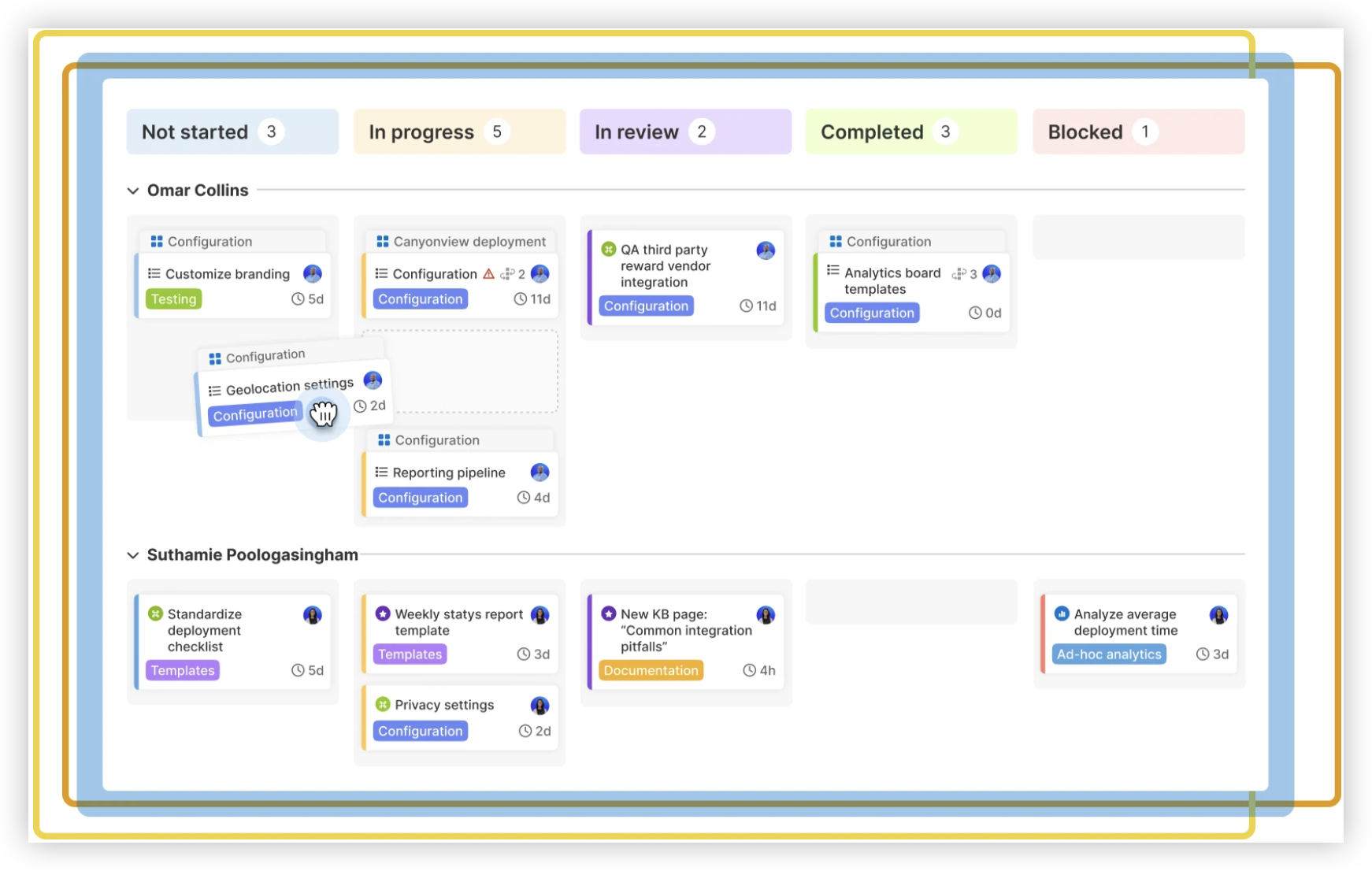
Jira can help teams organize issues, assignments, estimates, sprints, and project progress. How much capacity planning you can do directly depends on your Jira edition, configuration, and any apps your team uses. Start by deciding what planning information you need, then check whether your existing Jira setup can display it clearly across projects and people.
What should I include in a resource plan?
Include the planning period, team members or roles, available capacity, planned work, effort estimates, priorities, and important dependencies. Account for leave, support duties, meetings, and other recurring commitments. For example, a release plan should show who can complete implementation and who can review or test the work, since those roles may have different capacity constraints.
How often should a team update its capacity plan?
Review capacity whenever your team makes commitments, such as during sprint planning or a release kickoff. Revisit it when priorities change, someone becomes unavailable, or an urgent task takes significant time. A brief weekly check can be enough for a stable team, while teams handling frequent support requests may need to review assignments more often.
How can I plan resources across multiple Jira projects?
Bring competing assignments into a shared planning conversation, especially when the same people contribute to several projects. Compare priorities, deadlines, skills, and available time instead of assuming each project’s plan can be met independently. Agree on which work takes precedence, then update the relevant Jira issues so project leads and contributors can follow the decision.
Conclusion
Jira resource management works best as a regular planning habit: define the scope, estimate capacity, prioritize work, check for conflicts, and update assignments when conditions change.
When capacity stays invisible, teams risk overbooking specialists and discovering conflicts too late. A clear routine gives you an earlier chance to adjust scope, timing, or ownership before a delay spreads across the project.
Start with one team and one planning period. Keep the process practical, learn from each cycle, and refine your Jira setup as your team discovers what it needs to make informed commitments.