Jira Software and Confluence: A Practical Workflow Guide
Want clearer projects and fewer lost decisions? This practical jira software confluence workflow guide connects tasks, knowledge, and delivery. Read now to learn how.
Jira Software and Confluence can help your team track work and keep project knowledge in one connected workflow. But without clear habits, Jira issues become hard to follow, while useful decisions disappear across scattered Confluence pages. People repeat questions, miss handoffs, and spend time reconciling plans instead of moving work forward. The tools work best when each has a defined role and teams link them with purpose. Here’s the truth: installing both products does not automatically create a smooth process. You need a simple way to connect goals, tasks, decisions, and delivery. I’ll walk you through a practical workflow, from planning a project to sharing what your team learns along the way.
Here’s why: a few consistent practices can make the relationship between Jira Software and Confluence clearer without adding unnecessary administration.
How Jira Software and Confluence work together
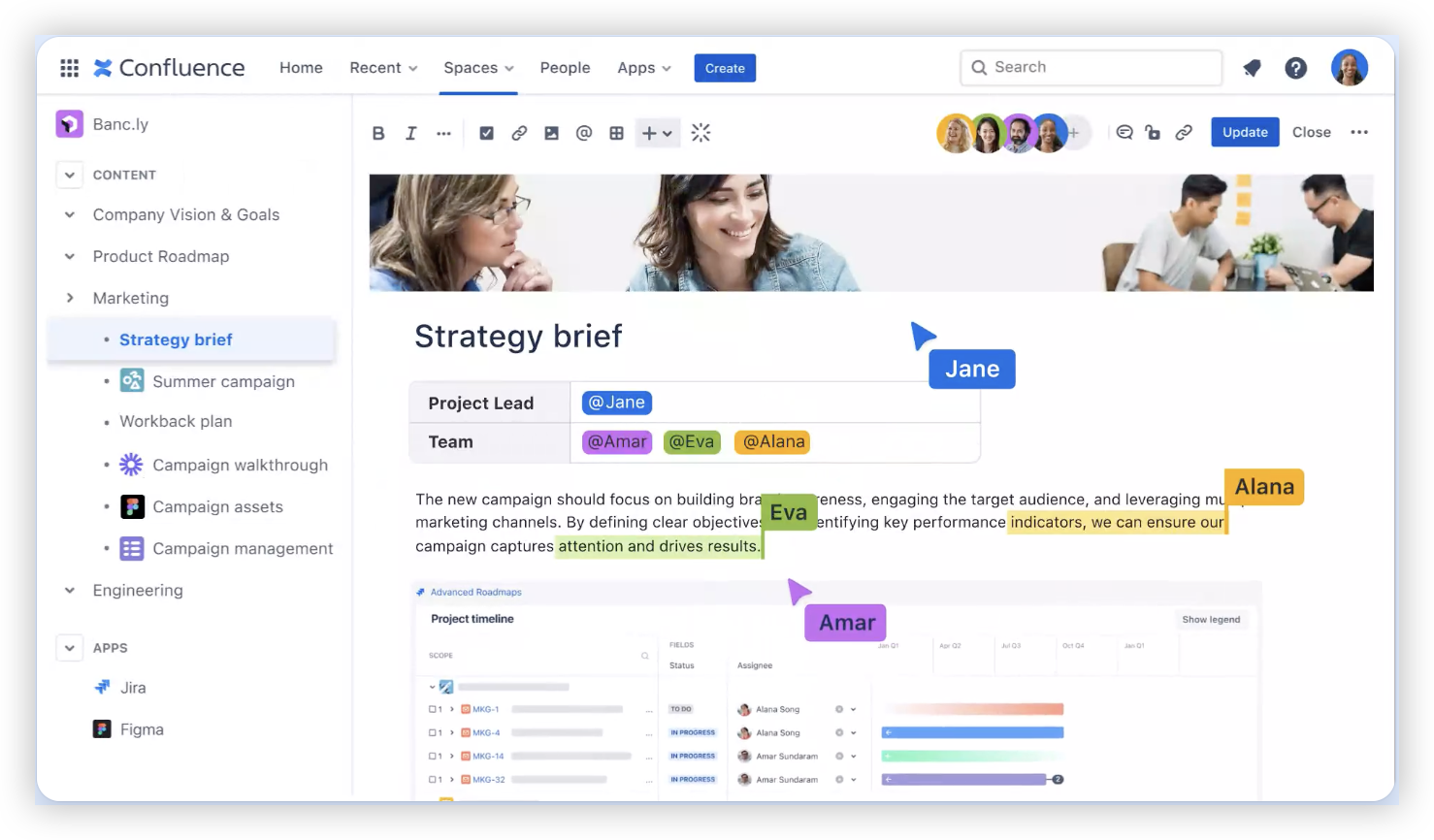
Jira Software and Confluence work together by connecting project work with the knowledge that explains it. Jira Software helps teams plan, assign, and track issues. Confluence gives teams a shared space for project plans, decisions, requirements, and guidance.
Think of Jira as the place to manage actionable work and Confluence as the place to explain context. A product requirement might live on a Confluence page, while its implementation tasks are tracked as Jira issues linked to that page.
The connection helps people move between the “why” and the “what.” For example, a developer can open a Jira issue and follow its link to the product decision behind it. A project lead can review the page and see related work.
Decide what belongs in each workspace
Start by agreeing on what belongs in Jira Software and what belongs in Confluence. This small decision prevents duplicate plans and reduces confusion when project details change.
Use Jira issues for work that needs an owner, status, priority, or completion criteria. Keep broader explanations in Confluence, such as a project brief, customer research summary, or team process guide.
For example, a Jira issue can track “Add password reset confirmation.” A linked Confluence page can explain the user problem, design rationale, and expected behavior across the reset flow.
Let me explain: the key is to keep a clear home for each kind of information. If a deadline changes, update the active plan and link related issues instead of maintaining competing copies.
Build a workflow from project goals to tasks
Connect planning and execution in a few deliberate steps. This gives contributors enough context to act while keeping project details easy to locate.
Write a concise project brief in Confluence. Explain the goal, audience, scope, key risks, and how the team will judge progress.
Break the work into Jira issues. Create epics, stories, tasks, or bugs that represent work someone can own and complete.
Link the issues to the relevant Confluence page. Add the page link where contributors will see it, such as the project overview or issue details.
Assign owners and define completion criteria. An issue should make clear what needs to happen and what evidence shows it is complete.
Review progress and update project knowledge. Capture meaningful decisions and scope changes in Confluence, then adjust affected Jira issues.
Imagine a team launching a new checkout option. The Confluence brief explains the customer need and launch boundaries. Jira issues cover design, development, testing, and release tasks, each linked to the relevant context.
The best part? This workflow lets people start with the project goal or jump directly into a task, depending on what they need to do.
Use Jira and Confluence throughout the work cycle
At the start of a sprint or project phase, review the plan in Confluence and confirm that the Jira backlog reflects current priorities. This catches stale tasks before they affect delivery.
During the work, contributors can use Jira to report status and raise blockers. When a decision affects the approach, record its rationale on the project page and link the affected issues.
At the end of a sprint, use Jira’s progress view to discuss completed and remaining work. Add useful outcomes, lessons, or follow-up decisions to Confluence so the next planning conversation has context.
You might be wondering: should every issue have a Confluence link? Usually, no. Link pages when they provide useful context; avoid adding links that lead to irrelevant or outdated information.
Keep links, plans, and ownership clear
A connected workflow needs lightweight upkeep. Give project pages an owner, make the current plan easy to identify, and check that important links still lead to relevant information.
For example, a team might review its project overview during weekly planning. If the delivery date or scope has changed, the owner updates the overview and flags Jira issues that need a new priority or estimate.
Use a consistent naming pattern for project pages and Jira epics. A shared convention such as “Mobile Checkout — Project Brief” makes it easier to recognize the right page when several initiatives are active.
Keep reporting focused on useful questions: What is blocked? Which work is at risk? What decisions need attention? A dashboard that answers these questions is more helpful than one crowded with metrics nobody uses.
Jira Software and Confluence Workflow Solution: ONES.com
ONES.com brings project management and knowledge management together in one platform powered by ONES Assistant. ONES Project handles project work, while ONES Wiki supports team knowledge; the products are sold separately.

For teams reviewing their Jira Software and Confluence workflow, ONES.com offers an option with Jira-compatible workflows and a knowledge base in the same platform. You can choose Cloud, On-Premise, Private Cloud, or Air-gapped deployment.
Core capabilities
Disconnected project work: ONES Project supports project planning and issue tracking, helping teams manage tasks and delivery in a shared workspace.
Scattered team knowledge: ONES Wiki provides a knowledge management space, so teams can organize project context alongside their work environment.
Existing Jira habits: Jira-compatible workflows help teams carry familiar processes into ONES Project with less disruption.
Rigid work structures: Custom workflows and fields let teams adapt work stages and issue details to their processes.
Unclear sprint progress: Sprint management and built-in reporting help teams review delivery and identify work that needs attention.
Manual repetitive tasks: Automation can reduce routine actions, giving teams more time for project decisions and execution.
Plugin-heavy setups: Native capabilities can reduce dependence on extra plugins for supported workflows, reporting, and project functions.
Deployment constraints: Cloud and self-hosted options provide deployment flexibility, with full feature parity between cloud and self-hosted versions.
Application scenarios
A software team replacing a Jira-centered workflow can use ONES Project for issue tracking and sprint work, while ONES Wiki holds project plans and team guidance. This can make it easier to connect day-to-day tasks with shared knowledge.
An organization with strict network requirements can consider On-Premise, Private Cloud, or Air-gapped deployment. Teams of up to 30 seats can use the free offering to explore the platform’s fit.
Common challenges and practical solutions
Teams maintain the same plan in two places
Problem: Different versions of a project plan can show conflicting dates or scope. Solution: Identify the page or Jira view that owns each detail, then link to it instead of copying it into multiple places.
Jira issues lack enough context
Problem: Contributors may not understand why a task matters or what the expected outcome looks like. Solution: Add a brief explanation to the issue and link the relevant Confluence page for deeper context.

Confluence pages become difficult to trust
Problem: Old pages can leave people unsure which guidance is current. Solution: Assign a page owner, add a review date where useful, and clearly mark superseded guidance.
Teams create too many links and reports
Problem: Excessive links and dashboards make it harder to find useful information. Solution: Keep links relevant to the task and limit reporting to measures that support a real decision.
FAQs
What is the difference between Jira Software and Confluence?
Jira Software is used to plan and track work, including issues, sprints, and project progress. Confluence is used to create and organize team knowledge, such as plans, requirements, decisions, and process guidance. Teams can link Jira issues with Confluence pages so contributors can move between actionable work and its context.
How do Jira Software and Confluence work together?
A team can create a project brief in Confluence, break the work into Jira issues, and link the issues to relevant pages. The brief explains goals and decisions, while Jira tracks ownership and progress. When scope or priorities change, the team updates the appropriate project details and links related work to keep the workflow connected.
Should every Jira issue link to a Confluence page?
No. A link is useful when a page helps someone understand the task, its requirements, or a decision behind it. A small bug fix may need only a clear description and acceptance criteria. A larger feature may benefit from a link to a requirements page or project brief.
How can a team keep Confluence pages current?
Give important pages an owner who can review them when project details change. During regular planning, check pages that describe active scope, delivery dates, or team decisions. Mark outdated guidance clearly and point readers toward the current page. These habits make the knowledge space more dependable without requiring constant review of every page.
Conclusion
Jira Software and Confluence work best when each tool has a clear role: Jira tracks the work, while Confluence explains the context. Link relevant issues and pages, assign ownership, and review important project details as plans change.
When the workflow feels scattered, people lose time searching and can miss decisions that affect delivery. A simple connection between goals, tasks, and team knowledge gives everyone a clearer path from planning to completion. Start with one active project, agree on where key details belong, and improve the workflow as your team learns what it needs.