Jira Software and Confluence: A Workflow Setup Checklist
Need a smoother workflow across Jira Software and Confluence? Use this setup checklist to align projects, permissions, and links. Read now to learn.
When Jira Software and Confluence are set up separately, teams can lose time searching for decisions, clarifying ownership, and connecting work to project context. A ticket may show what needs doing while the reasoning behind it sits elsewhere. Over time, status updates drift, pages become hard to navigate, and handoffs get messy.
But here's the truth: connecting the tools is only the beginning. You also need consistent project structures, sensible permissions, clear linking habits, and a plan for keeping everything current. Otherwise, the integration adds another place to look without making work easier.
This checklist helps you build a practical workflow across Jira Software and Confluence. You’ll define how teams plan work, capture decisions, link project context to issues, and maintain useful reporting. Follow it before rollout, or use it to improve a setup that already feels harder to manage than it should.
Jira Software and Confluence Workflow Setup Checklist
Start with ownership and structure, then connect the tools around the way your team actually works. A team building a mobile app, for example, can track development in Jira Software and keep release plans and product decisions in Confluence.
- Set a workflow owner. Name a person or team to maintain project settings, shared conventions, and integration choices.
- Define the project structure. Decide whether work belongs in one Jira project or several, based on team responsibilities and access needs.
- Standardize issue types. Agree on when to create an epic, story, task, or bug, and clarify what each type represents.
- Map the issue lifecycle. Choose statuses that reflect real work, such as To Do, In Progress, In Review, and Done.
- Set required fields deliberately. Ask for details that help people act, such as acceptance criteria or a release target, without making ticket creation cumbersome.
- Organize Confluence spaces. Create spaces around teams, products, or initiatives, then define where plans, meeting notes, and decisions belong.
- Link useful context to Jira issues. Add links to relevant plans, design notes, or decisions so teammates can find the reasoning behind a task.
- Match access to responsibilities. Review who can view, create, edit, or administer each project and space.
- Choose reporting and automation rules. Define which updates should happen automatically and which reports help teams make decisions.
- Schedule a regular review. Check links, permissions, stale pages, and workflow changes after each major release or team restructure.
Keep the checklist visible during setup. If a team cannot explain why a status or field exists, simplify it before rollout.
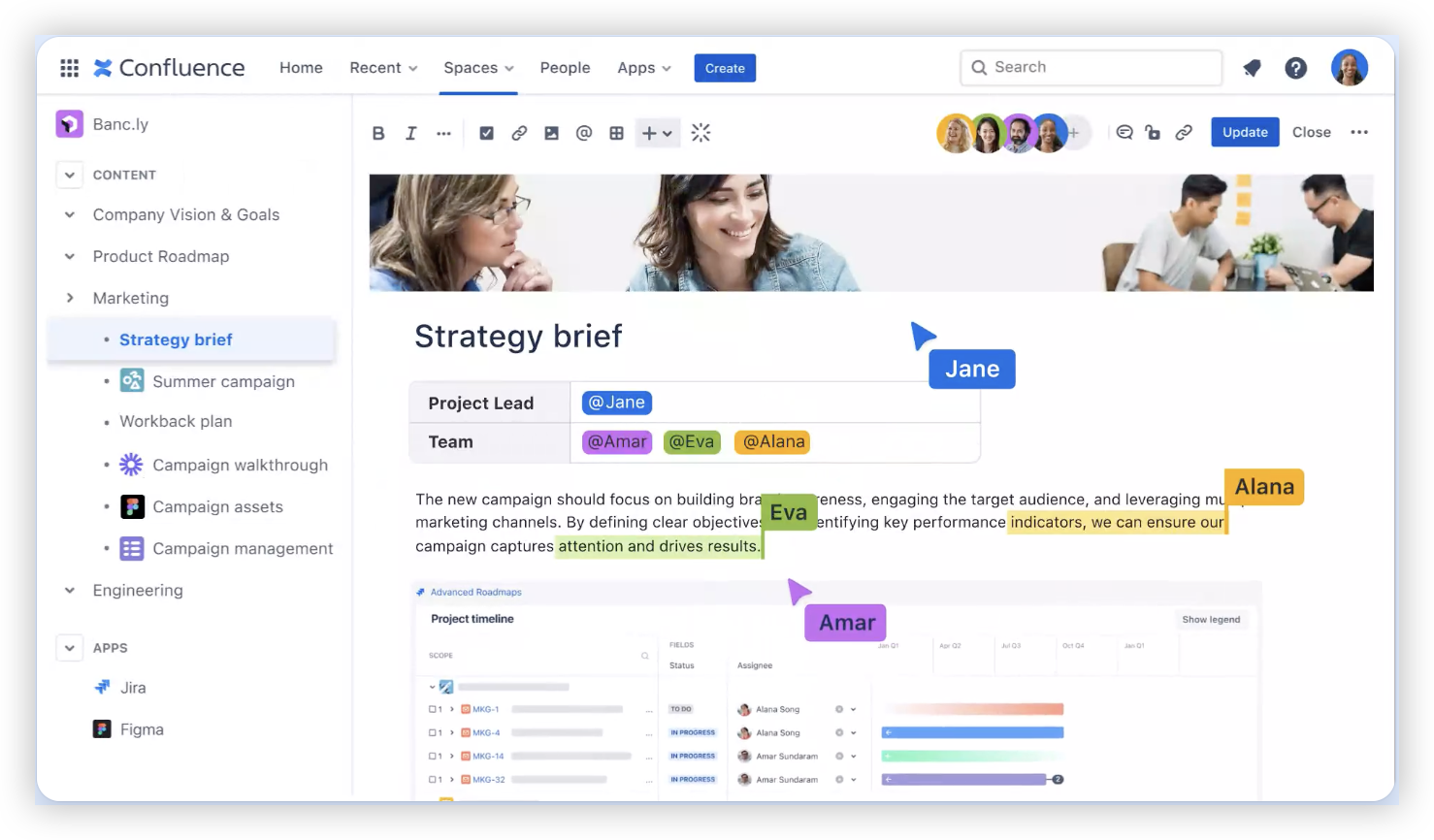
Map the Work Journey Before Connecting Anything
First, trace how a request becomes completed work. A product change might begin with a customer need, move through discovery and prioritization, then enter development and review. Each step should have a clear owner and a useful place for its context.
Here's why: a link between a Jira issue and a Confluence page is valuable only when people know what it represents. For example, a story can point to a product decision page, while an epic can connect to the release plan that groups related work.
Sketch the journey with a small real project before expanding it. Ask the team where decisions happen, which updates need tracking, and what information a developer needs before starting an issue.
Design Jira Projects and Confluence Spaces Around Real Teams
Keep the structure understandable to someone joining the team next month. If a product group has separate mobile and web work, it may use distinct Jira projects while sharing a Confluence space for product strategy and release planning.
Use names that make purpose obvious. “Payments Platform” is easier to recognize than “PP-2,” and a page titled “Release readiness checklist” is more useful than “Notes.” A consistent naming convention also makes search and handoffs easier.
Try a small pilot before duplicating the structure across departments. If teams create overlapping pages or cannot tell which project owns a task, adjust the layout before broad adoption.
Make Permissions and Linking Habits Predictable
Permissions should help people collaborate without exposing work to the wrong audience. Review Jira project roles and Confluence space access together, especially when contractors, clients, or separate business units are involved.
For example, a launch plan may be visible to marketing and engineering, while a restricted issue contains sensitive implementation details. Link only the context the intended audience can access, and test the experience with a standard team account.
Agree on a simple linking habit: add the relevant Jira issue to a Confluence page, and add the useful page link to the issue. This two-way connection gives readers a route from the task to its context and back again.
Use Automation and Reporting With Care
Automation can reduce repetitive updates, such as notifying a channel when a release issue moves into review. Keep each rule tied to a clear outcome, and make sure the team understands what triggers it.
Reporting should answer practical questions. A sprint report can show whether planned work is progressing, while a release view can help identify unresolved bugs. A crowded dashboard with metrics nobody discusses adds little value.
The best part? You can start with a small set of reports and rules, then adjust after observing how people use them. Review them during retrospectives and remove anything that creates noise or encourages misleading status updates.
Jira Software and Confluence Workflow Solution: ONES.com
ONES.com brings project management and knowledge management together in one platform, with ONES Project for project management and ONES Wiki for knowledge management. The products are sold separately, so a team can select the capabilities that match its workflow.

Teams considering an alternative to separate Jira Software and Confluence setups can evaluate ONES.com for project tracking and shared team knowledge. ONES Project is a Jira alternative, and ONES Wiki is a Confluence alternative.
Core Capabilities
- Disconnected project context: ONES Project and ONES Wiki provide project and knowledge management in one platform, helping teams connect plans with tracked work.
- Complex issue workflows: Jira-compatible workflows, custom workflows, and custom fields let teams represent their processes and capture relevant task details.
- Sprint planning needs: Sprint management supports teams organizing development work into planned cycles and reviewing progress.
- Manual status updates: Automation can handle selected routine transitions or notifications, reducing repetitive coordination.
- Limited progress visibility: Built-in reporting gives teams a way to review work without relying on a collection of added plugins.
- Plugin-heavy setups: Native capabilities can reduce plugin dependence where teams need core project tracking and reporting functions.
- Restricted hosting requirements: Cloud, On-Premise, Private Cloud, and Air-gapped deployments give organizations different hosting options.
- Concerns about feature differences across hosting: ONES.com provides full feature parity between cloud and self-hosted versions, so deployment choice does not require giving up platform features.
Application Scenarios
A software team can plan sprints in ONES Project, manage issue workflows, and keep product decisions in ONES Wiki. This can help developers move between assigned work and the context that explains it.
An organization with restricted network requirements can assess an Air-gapped or other self-hosted deployment while keeping project and knowledge workflows in the same platform. Teams can also try the free plan for up to 30 seats before deciding how to proceed.
Common Challenges and Practical Fixes
- Issue links are missing or outdated. Make linking part of the team’s issue completion or review routine, and assign an owner to check key project pages.
- Too many statuses confuse the team. Remove statuses that do not represent a meaningful handoff, and explain the remaining workflow during onboarding.
- Pages become stale after launch. Give important pages an owner and a review date, then archive or update material that no longer reflects current work.
- Automation creates noisy notifications. Review each rule’s trigger and audience, then limit alerts to updates that need a response or decision.
- People cannot access linked context. Test links with representative accounts and align space permissions with project roles before rollout.
FAQs
What is the best way to connect Jira Software and Confluence?
Start by deciding what information belongs in each tool and which items should link together. For example, Jira Software can track a bug while Confluence holds the investigation notes and agreed fix. Enable the supported connection for your environment, test it with a small team, and verify that people can follow links with their normal permissions.
Should every Jira issue have a Confluence page?
No. Create or link a page when the issue needs shared context, such as a product decision, technical plan, or release checklist. A small maintenance task may need only a clear description and acceptance criteria in Jira. Requiring a separate page for every issue can create extra work and leave behind pages with little value.
How should I organize Confluence spaces for multiple teams?
Choose a structure that reflects how teams share information and manage access. A product group might use one space for strategy and release planning, while individual teams keep their own spaces for working notes. Set naming conventions and explain where key materials belong. Review the structure as teams change, rather than creating new spaces without clear ownership.
How often should I review the workflow setup?
Review it after major releases, team changes, or repeated process problems. A short quarterly check can also reveal stale links, unused statuses, and permission gaps. Ask teammates which steps slow them down and whether reports still answer useful questions. Make small, deliberate changes, then explain them so the workflow remains predictable.
Conclusion
A useful Jira Software and Confluence workflow gives each tool a clear role, connects tasks with the context behind them, and makes permissions and ownership understandable. Start with one team, test the checklist against real work, and refine the setup before expanding it.
When links go stale or workflows grow confusing, the friction compounds. A clear structure, thoughtful automation, and regular reviews can make daily handoffs smoother and help teams keep project knowledge close to the work it supports.