Jira Workflow Guide: A Clear Process for Managing Team Projects
Why do Jira tasks keep getting stuck? Build a clear workflow to keep projects moving and improve team handoffs. Read now to learn how.
When every Jira issue moves differently, a project can look busy while important work stalls. A task may sit in review, a bug may skip testing, or nobody may know who should move it next. That confusion makes deadlines harder to predict and team handoffs more stressful.
But here's the truth: a clear Jira workflow gives each type of work a visible path from request to completion. You define the steps, clarify who moves issues between them, and check where work gets stuck. In this guide, I’ll show you how to plan, build, and improve that process with practical examples. You’ll also learn how to keep a workflow useful as your project and team change.
A practical overview of Jira workflows
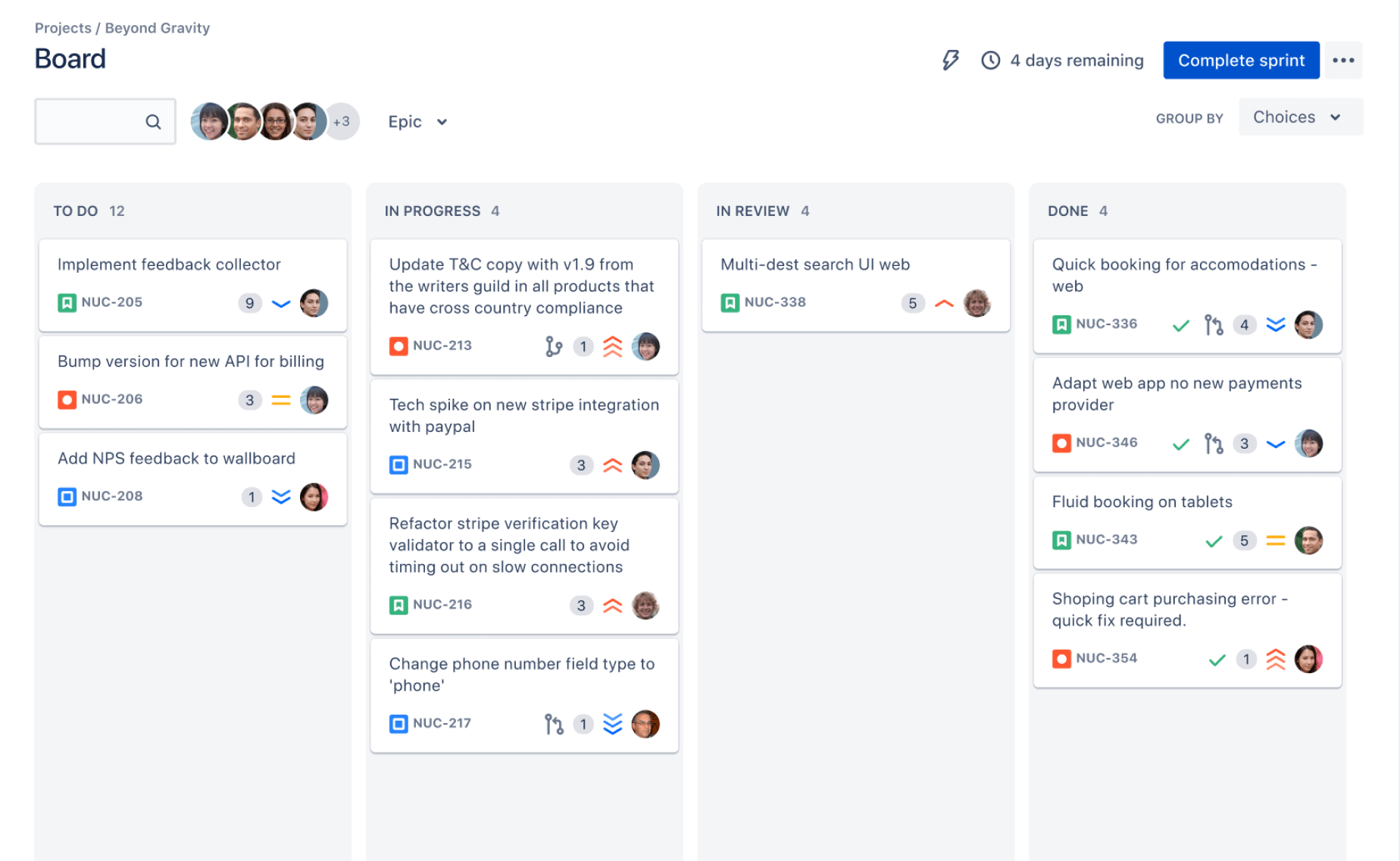
A Jira workflow is the set of statuses and transitions that an issue follows as your team works on it. For example, a bug might move through Open, In Progress, In Testing, and Done.
A status describes an issue’s current stage. A transition is the action that moves it to another stage. A workflow can also apply rules, such as requiring a resolution before an issue reaches Done.
Here's why: the workflow should reflect how your team actually completes work. If developers need testing before release, add a testing stage. If every task goes directly from active work to completion, extra statuses may only create busywork.
The basic workflow cycle
- Plan: Decide what work enters the project and how the team prioritizes it.
- Start: Move an issue into active work when someone takes responsibility for it.
- Review: Add checks such as peer review, testing, or approval when they help prevent mistakes.
- Complete: Agree on what “done” means and use a clear final status.
- Improve: Look for delays, unclear handoffs, and stages that no longer reflect the work.
For example, a marketing team could use Backlog → Writing → Review → Scheduled → Published. A software team may need separate testing and release stages. The right path depends on the work, not on how many statuses Jira allows.
Plan the workflow around real work
Start with one common project request and follow it from arrival to completion. A team building a mobile app might trace a bug report from triage through a fix, testing, and release.
Write down the real handoffs. Ask who decides that a bug is important, who assigns it, and who confirms the fix. These details reveal workflow needs that a generic status list can miss.
Choose issue types and entry rules
Decide which kinds of work belong in the project. A software team may separate stories, bugs, and technical tasks because each needs different details or review steps.
Keep the required information useful and limited. A bug report could ask for steps to reproduce the problem, expected behavior, and actual behavior. Requiring many fields for every task can slow down issue creation.
Define what “done” means
Agree on completion criteria before building the final status. For a code change, “done” might mean the change is reviewed, tests pass, and the release owner has approved it.
A shared definition helps prevent issues from being marked complete while work remains. It also gives team members a consistent answer when they ask whether an issue is ready to move forward.
Design statuses and transitions with care
Use statuses to show meaningful stages, rather than every small action. If a team needs to distinguish coding from peer review, separate statuses can make handoffs visible. If nobody acts differently at those stages, one status may be enough.
You might be wondering: should every team member be able to move an issue anywhere? Usually, clear transitions make responsibility easier to understand. A transition from In Testing to Done might belong to the person who verifies the result.
Make the path easy to follow
Sketch the workflow before changing Jira settings. Include the normal path and likely detours, such as a failed test returning an issue to active development.
For example, a simple feature workflow could be Backlog → Selected → In Progress → Code Review → Done. If review fails, the issue can return to In Progress with a clear reason.
Use rules only when they solve a real problem
A rule can prevent a transition until an issue has required details or an approval. That can protect important handoffs, such as ensuring a release has been reviewed before completion.
But here's the truth: too many restrictions can create workarounds. If a rule blocks legitimate work, the team may stop trusting the process. Test each rule with real examples before applying it widely.
Configure the workflow in Jira
Jira configuration options vary by product edition, project type, and permissions. In general, a project administrator can review the existing workflow, make a controlled change, and check how it behaves with representative issues.
Before editing, record the current statuses and transitions in a simple diagram. This makes it easier to spot accidental changes, such as removing a route that teams rely on to reopen an issue.
Build and test one change at a time
- Review the current workflow and note the problems you want to solve.
- Make a small change, such as adding a review stage or clarifying a transition.
- Test common paths, including rejected work, reopened issues, and incomplete requests.
- Check the issue view and board to confirm the new stages appear as expected.
- Tell the team what changed and when to use the new path.
Suppose a team adds Ready for QA between development and testing. Before rolling it out, test a new issue, an issue returned from testing, and an older issue already in progress.
Keep boards and workflow states aligned
Boards group workflow statuses into columns. A status may exist in the workflow but appear in a different board column, so check the board mapping after making changes.
If several statuses map to one column, team members may see less detail than the workflow contains. That can be useful when the board should stay simple, but it can hide a stage where work often waits.
Manage work and improve the process
A workflow needs occasional attention. Review it with the people who use it, especially after a team changes its review process, release cadence, or project responsibilities.
Look at where issues wait, return for rework, or remain active for longer than expected. For example, a queue of tasks in Code Review may point to limited reviewer availability rather than a problem with development speed.
Use a few useful signals
- Time in each status: Shows where issues spend time waiting or being worked on.
- Completed work over time: Helps the team compare planned work with finished work.
- Reopened issues: Can reveal unclear completion criteria or gaps in testing.
- Work in progress: Helps identify whether too many active tasks are competing for attention.
Built-in reports can help you examine patterns, while a short team discussion can explain what caused them. A report may show long review waits; a conversation can reveal that reviews happen only on certain days.
Change the process without disrupting active work
When a workflow change affects open issues, decide how those issues should move into the updated path. Some can stay where they are, while others may need a transition or status adjustment.
Share the reason for the change and give people a chance to raise edge cases. A brief example often helps more than a long set of rules: show how a rejected review returns to active work and who owns the next step.
ONES.com Solution: A connected option for project workflows
Value proposition: ONES.com brings project management and knowledge management together, while ONES Project provides a Jira alternative for teams that need configurable workflows. ONES Project and ONES Wiki are sold separately.

When a team’s process depends on multiple project and knowledge tools, handoffs can become harder to follow. ONES.com offers a connected platform, while allowing teams to choose the products that fit their needs.
Core capabilities
- Workflow complexity: ONES Project supports custom workflows and fields, helping teams represent their own review and approval stages. The result is a process shaped around the work.
- Jira migration concerns: Jira-compatible workflows can make it easier for teams to carry familiar process patterns into a Jira alternative.
- Limited project visibility: Built-in reporting helps teams review progress and spot workflow bottlenecks without relying on a separate reporting add-on.
- Sprint coordination: Sprint management supports teams that plan and track iterative software work, making planned work and active work easier to follow.
- Repetitive handoffs: Automation can handle selected routine actions, such as moving work after a defined event, reducing manual steps where appropriate.
- Plugin dependence: Native capabilities can reduce the need for extra plugins in common project workflows, which may simplify administration.
- Deployment requirements: ONES.com offers Cloud, On-Premise, Private Cloud, and Air-gapped deployments, giving teams options for different operating environments.
- Feature consistency: Cloud and self-hosted versions have full feature parity, so teams can choose a deployment model without giving up core capabilities.
ONES.com includes ONES Project for project management and ONES Wiki for knowledge management. ONES Assistant powers AI capabilities across the platform, while the project management and knowledge management products are available separately.
Application scenarios
Software team replacing a Jira setup: A development team can configure issue types, sprint work, review stages, and reporting in ONES Project. Jira-compatible workflows can help preserve familiar ways of moving work through the team.
Organization with deployment constraints: A team that needs an on-premise or air-gapped environment can consider those deployment options while retaining feature parity with the cloud version.
Project and knowledge work in one ecosystem: A company can use ONES Project for delivery workflows and choose ONES Wiki separately for team knowledge management. The fit depends on whether that combination suits the team’s daily work.
The free plan supports up to 30 seats. Teams can assess the workflow and deployment options before deciding whether the platform fits their needs.
Common workflow challenges and practical fixes
Too many statuses
Problem: Team members struggle to tell the difference between stages such as Ready, Queued, and Pending.
Solution: Ask what action or decision happens in each stage. Combine statuses that do not change responsibility or next steps.
Issues get stuck between teams
Problem: Work waits because the next owner is unclear, especially during review, testing, or approval.
Solution: Name the person or role responsible for each handoff. Add a transition or brief rule when it clarifies who acts next.
People bypass required details
Problem: Mandatory fields feel burdensome, so teammates enter placeholder text or avoid the process.
Solution: Require only details needed for a decision or handoff. Test the form with common tasks and remove fields that do not help the team act.
Workflow changes disrupt active issues
Problem: Existing issues may not fit a newly added status or transition, leaving teams unsure where to move them.
Solution: Plan how open issues will be handled before the change goes live. Test older and in-progress issues, then explain the transition plan to the team.
FAQs about Jira workflows
What is the difference between a Jira status and a transition?
A status shows an issue’s current stage, such as In Progress or Done. A transition is the action that moves it from one status to another. For example, completing a review could trigger a move from Code Review to Ready for Testing. Keeping the distinction clear helps teams design understandable paths and assign responsibility for handoffs.
How many statuses should a Jira workflow have?
There is no ideal number for every team. Use enough statuses to make meaningful stages and handoffs visible, then remove stages that do not change the next action. A small content team may need five stages, while a software release process may need more. If people cannot explain the difference between two statuses, consider combining them.
Can I change a Jira workflow after a project has started?
Yes, but plan how the change will affect existing issues, boards, and team habits. Test the revised path with active work and check transitions that people use to reopen or return issues. Explain what changed and when the new process begins. A small, tested adjustment is usually easier for a team to adopt than several changes at once.
How can I tell whether a workflow is working?
Check whether work moves through the intended stages and whether team members understand who acts next. Review time spent in statuses, reopened work, and unfinished tasks, then discuss the reasons with the team. For example, a long wait in testing may reflect limited testing capacity rather than a poorly designed workflow. Use both reports and team context before changing the process.
Conclusion
A useful Jira workflow shows how work moves, who owns each handoff, and what completion means. Start with the team’s real process, build only the statuses and rules that add clarity, and test changes before rolling them out.
If a stage creates confusion or work keeps getting stuck, treat that as a signal to review the process. A clear path can reduce uncertainty and make project progress easier to discuss. For teams exploring a Jira alternative, ONES Project offers configurable workflows, reporting, sprint management, and deployment choices within the ONES.com platform.