Link Confluence to Jira: A Step-by-Step Guide (2026)
Need connect project notes to tasks? Learn how to create a confluence link to jira with this step-by-step guide. Read now to get started.
A Jira task can hold the details of a piece of work, while its background and decisions live on a Confluence page. Without a clear link, you may waste time searching both apps or miss an important update.
That friction grows when a teammate opens the task but cannot find the related project notes. They may repeat research, overlook a requirement, or act on stale information.
But here's the truth: you can connect Jira issues and Confluence pages with a Jira issue element, a Smart Link, or a pasted page URL. The right method depends on what you want people to see and which permissions they have. This guide walks you through both directions, shows you how to check the links, and helps you troubleshoot common access and display problems.
How to link Confluence to Jira
You can show Jira issues on a Confluence page and add a Confluence page link to a Jira issue. For a quick one-way reference, paste a URL; for a visible issue list, add Jira issues to the page.
Check access first. Sign in to the correct Confluence and Jira sites, and confirm you can view the page and issue you plan to connect. If you cannot open either item directly, the link will not grant you access.
Open the Confluence page. Choose an existing page with relevant project context, or create one for requirements, meeting notes, release details, or a decision. Select edit so you can add the Jira reference.
Add the Jira issue. In the page editor, type /jira if your editor supports slash commands, then choose the Jira issue option. You can also paste an issue URL or key, such as APP-42, and select the matching issue when prompted.
Choose how it appears. Use a compact link when you only need a reference. Choose a card or a fuller issue view when readers need status, assignee, or other available details at a glance. The available display choices depend on your Confluence setup.
Save the page and add its URL to Jira. Publish your changes, copy the Confluence page URL, and open the related Jira issue. Add the page URL in a suitable field, such as the description or a comment, or use a page-link option if your Jira interface provides one.
Test both directions. Open the issue from Confluence, then open the page from Jira. If teammates need the connection, ask someone with their usual account access to test it too.
Here's why: a link can be technically correct and still fail its purpose if teammates cannot open the destination. Check access as well as the link itself.
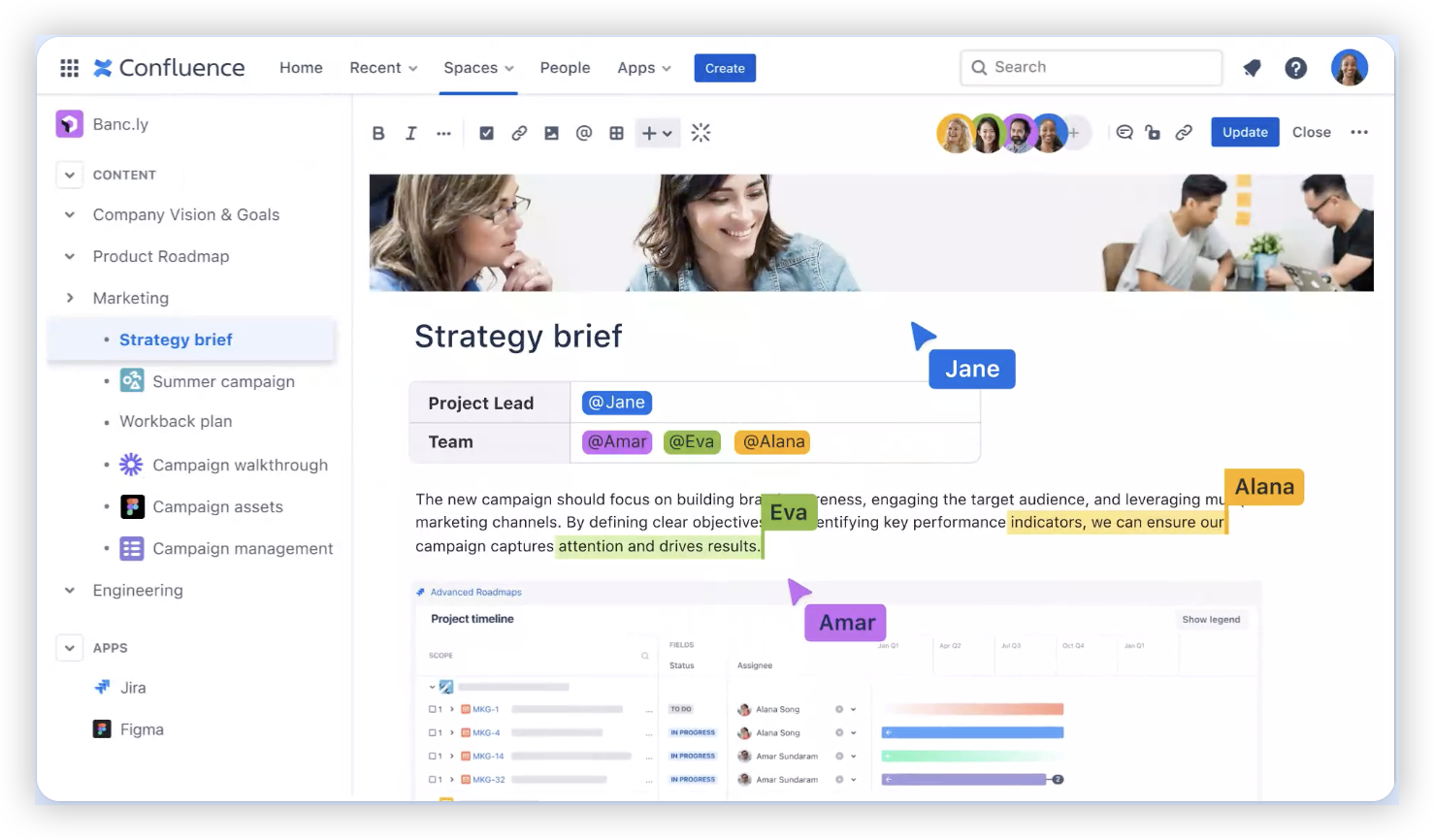
Choose the linking method that fits the work
A Jira issue element works well when a Confluence page needs to show one issue or a group of related tasks. For example, a launch plan might show tasks for design approval, testing, and deployment together.
A Smart Link or plain URL is often enough when the page only needs to point readers toward one issue. A pasted link is quick to add to a Jira description or comment when the issue needs a route back to its background page.
The best part? You can mix these methods. A project page might display several active issues, while each individual issue points back to the page explaining its requirements.
What the connection does—and what it does not
Embedding an issue on a Confluence page gives readers a convenient way to view or open Jira work. Depending on the display option and configuration, the page may show issue details such as its status or assignee.
That link does not automatically copy every detail between the apps. If a requirement changes on the Confluence page, update the related Jira issue when the change affects its scope, acceptance criteria, or delivery plan.
Think of the connection as a doorway between two work areas. It helps people move to the related context, while each app continues to manage its own content and permissions.
Permissions, visibility, and access checks
Confluence page access and Jira issue access are controlled separately. Someone who can open a page may not be able to view a restricted issue, and a Jira link cannot bypass that restriction.
For example, a product team may have access to a roadmap page while a particular Jira issue is limited to a smaller group. Readers may see a link or preview but still need permission to open the issue.
Let me explain: check the destination while signed in as the people who need it. If you share the page with a wider group, review whether the linked Jira issues have appropriate visibility too.
Troubleshoot links that do not work as expected
If an issue does not appear when you paste its key, check that the key is correct and that the Jira site is connected or recognized by your Confluence setup. Pasting the full issue URL can help when the editor does not find a result from the key alone.
If a preview shows limited details, try opening the issue directly. The viewer’s permissions, the selected display style, and the site configuration can all affect what appears on the page.
If a link opens the wrong destination, compare the URL with the intended page or issue and replace it. For example, a copied link to an older project page may still load correctly while leading teammates to outdated guidance.
Keep linked project context useful over time
Give important pages and Jira issues descriptive titles so people can recognize the right destination before opening it. “Mobile checkout requirements” is more useful than “Notes” when a task includes a page link.
When a project changes, review its key links during planning or release checks. Remove references to retired pages, and update Jira details when a linked requirement changes materially.
You might be wondering: should every issue link to a page? Usually, no. Add a connection when the page provides context people need to understand or complete the work.
Connected project and knowledge work: ONES.com

Value proposition
If your team is reviewing how it manages project work and knowledge, ONES.com brings those activities into one platform. ONES Project handles project management, while ONES Wiki supports knowledge management; the products are sold separately.
Core capabilities
Scattered project context: ONES.com provides project management and knowledge management within one platform. Teams can keep work planning and shared guidance closer together.
Jira workflow changes feel disruptive: ONES Project offers Jira-compatible workflows. Teams can adapt familiar ways of working while evaluating a Jira alternative.
Teams need tailored processes: Custom workflows and fields let teams reflect their own stages and tracking needs. This can make task handling more relevant to day-to-day work.
Sprint planning needs structure: ONES Project includes sprint management. Agile teams can organize planned work and track progress through their sprint routines.
Progress is hard to assess: Built-in reporting helps teams review project activity and status. That can reduce the need to assemble a separate view for routine checks.
Repeated actions take time: Automation can handle supported workflow actions. Teams can spend less time on routine transitions and more time resolving project work.
Plugin reliance adds overhead: Native capabilities can reduce the need for extra plugins for supported needs. Teams can assess which extensions they still require before making a change.
Hosting requirements vary: ONES.com is available in Cloud, On-Premise, Private Cloud, and Air-gapped deployments. Teams can evaluate deployment options alongside their security and infrastructure needs.
Self-hosted teams need feature consistency: ONES.com offers feature parity between cloud and self-hosted versions. Teams can compare deployment choices without planning around a reduced self-hosted feature set.
Application scenarios
Product development: A team can manage sprint work in ONES Project and maintain product knowledge in ONES Wiki. This provides a single platform for project and knowledge management, with each product serving its own purpose.
Restricted environments: An organization with strict hosting requirements can assess On-Premise, Private Cloud, or Air-gapped deployment options. It can also review workflow compatibility and needed capabilities during its evaluation.
ONES Project is a Jira alternative, and ONES Wiki is a Confluence alternative. They are separate products, so assess the capabilities and deployment needs that matter to your team before choosing either.
Common challenges when linking Confluence and Jira
The link opens an access error. Check permissions in both apps, then test the page and issue separately. Ask an administrator to review access if you cannot see the destination settings.
The page shows an issue without enough detail. Confirm the issue is correct, then try another available display style. Readers may need to open Jira for details that are not shown in the page preview.
A Jira issue has no clear path back to its context. Add the Confluence page URL in a prominent, relevant location, such as the issue description. Use a descriptive link label so teammates know why the page matters.
Several pages cover similar work. Agree on which page holds current guidance and link to that page from Jira. Remove or label older references to reduce confusion.
FAQs
Can I add a Jira issue to a Confluence page?
Yes. You can add an issue element through the page editor, paste an issue URL, or enter its key if your editor recognizes it. The exact editor controls can vary by Confluence version and configuration. After adding it, choose a display style that suits the page, then test the issue link with an account that has permission to view it.
How do I link a Confluence page from a Jira issue?
Copy the Confluence page URL and add it to a relevant part of the Jira issue, such as its description or a comment. Some setups may offer a more direct page-link option. In either case, use a clear label explaining the page’s role, and check that the people who need it can access the page.
Why can I see a link but not open the Jira issue?
The issue may have access restrictions that differ from the Confluence page’s permissions. Sign in to Jira and try opening the issue directly. If you still cannot view it, ask a Jira administrator or the issue owner to review your access. The link itself does not change who is allowed to see the issue.

Do Jira and Confluence keep linked information synchronized?
A link connects readers to related work, but it does not automatically synchronize all page content and issue fields. If a requirement changes, update the relevant Jira details when needed. For instance, a revised acceptance criterion on a Confluence page may require a matching update to the Jira issue.
Conclusion
To link Confluence and Jira, add the issue to a page, add the page URL to the issue, and test access in both directions. Choose an issue display for useful context, or use a simple URL when a quick reference is enough.
When links are hard to find or access, teammates lose time and may miss important project context. A clear connection, meaningful link label, and quick permission check can prevent that friction. Review important links as work changes, so the path between project tasks and knowledge stays useful.